ZenProg Remote: 9. Application updates
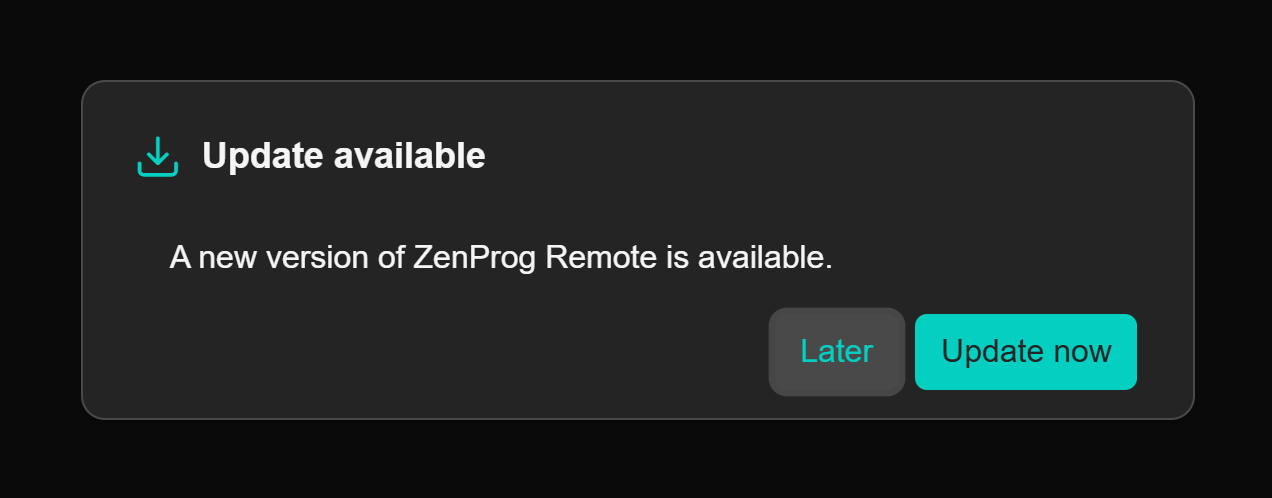
ZenProg Remote checks on start-up whether there is a more recent version. When there is, it shows the “Update available” dialogue (Figure 43) with two options:
- “Later”: it continues with the current version. The warning will appear again on the next launch.
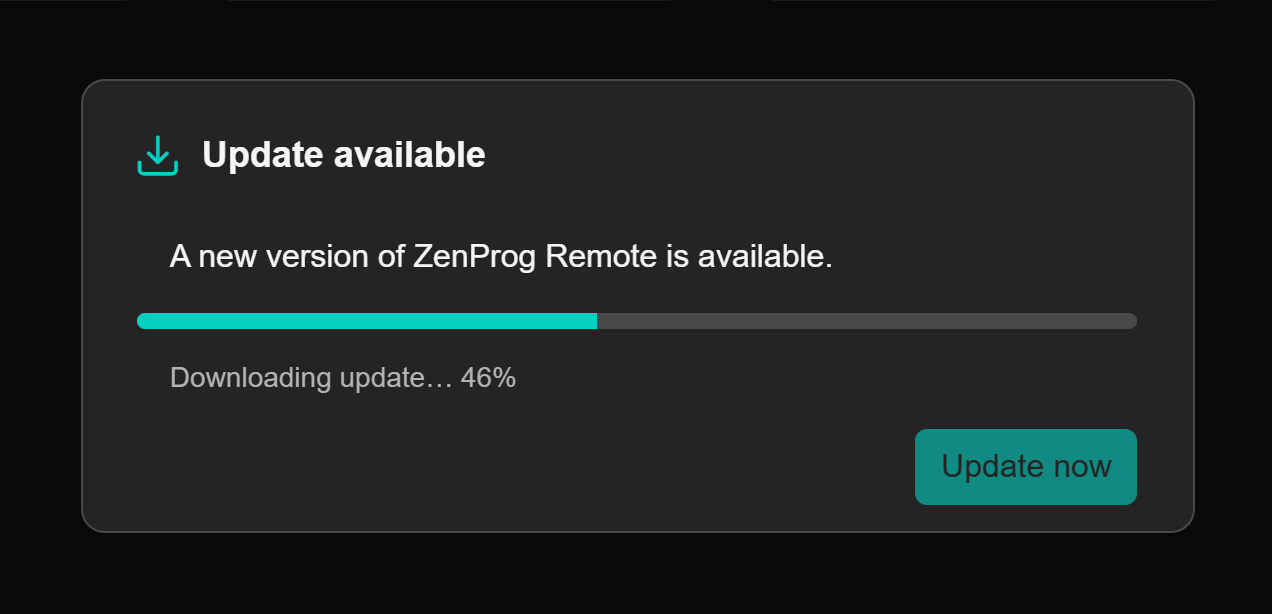
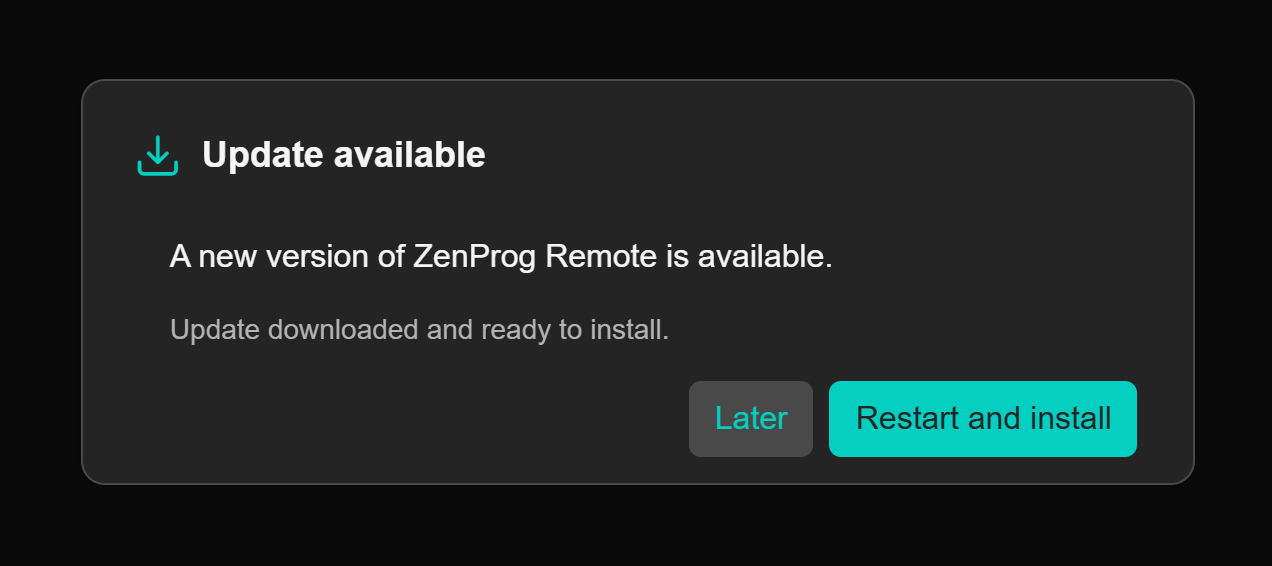
- “Update now”: it downloads the new installer showing the progress (Figure 44) and, when it finishes, offers the “Restart and install” button (Figure 45). The application closes and the installation starts automatically.
Note
It is always possible to update manually by downloading the installer of the latest version from https://www.zennio.com/.