ZenProg Remote: 1. Introduction
Remote programming of KNX installations through Zennio devices
1.1. Features
ZenProg Remote is the Zennio desktop application that makes it possible to program KNX installations remotely with ETS, with no travelling and without setting up virtual private networks (VPN). The application creates a secure tunnel between the ETS installed on the PC and a Zennio device connected to Zennio Remote in the customer installation. That device forwards the KNX traffic to a Zennio KNX/IP interface of the installation itself, so ETS works as if it were connected locally.
The main functions of the application are:
- Remote downloads and diagnostics from ETS5 and ETS6, through a virtual KNX/IP interface “[ZenProg]” that appears on the PC itself.
- Same account and same pairings as Zennio Remote: the devices already linked to the account appear automatically.
- Technician role: temporary and supervised access to third-party installations, approved by the end user from Zennio Remote.
- Organisation into projects with up to four levels (building, floor, zone…), search, sorting and CSV import/export.
- Selection of the KNX/IP interface of the installation, with the possibility of manually adding fixed interfaces reachable by their IP address.
- Consumption in MB with rechargeable licences, a permanently visible balance and low-balance warnings.
- Interface available in eight languages (English, French, German, Greek, Italian, Portuguese, Russian and Spanish) and in a light or dark theme.
- Automatic updates of the application.
1.2. How it works
The elements involved in remote programming are shown in Figure 1:
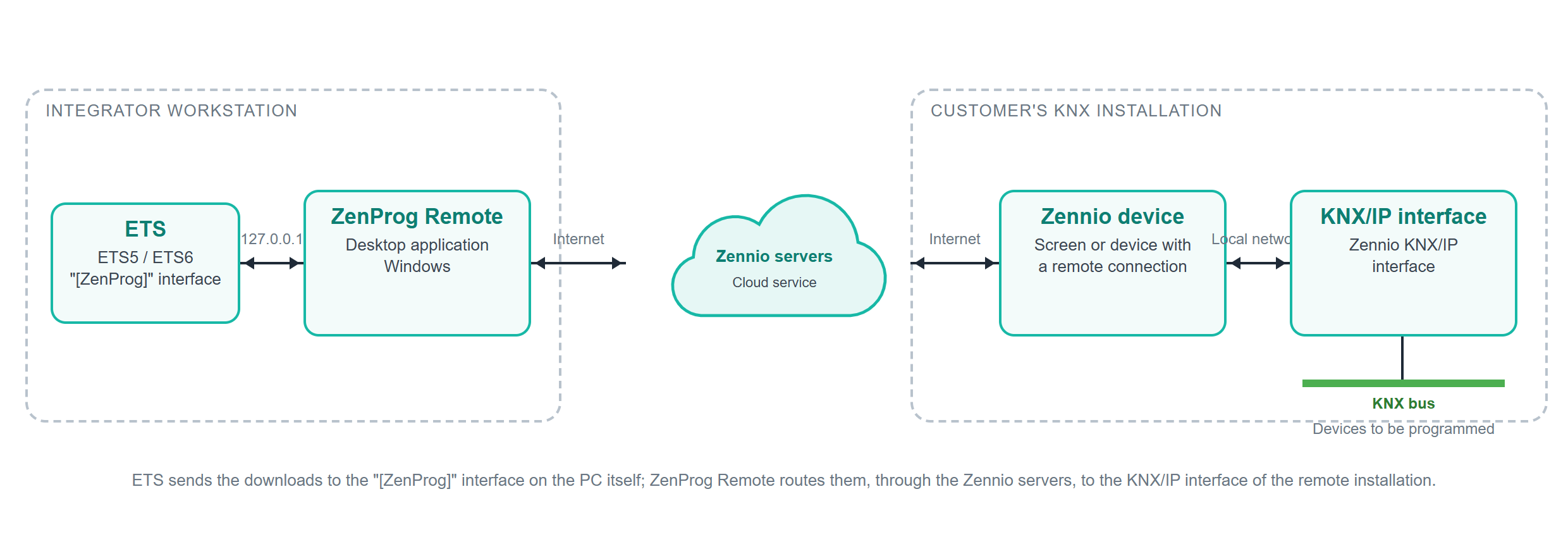
- ETS: KNX programming tool, installed on the same PC as ZenProg Remote. It allows the “[ZenProg]” interface to be selected, which ZenProg Remote publishes on the computer itself (address 127.0.0.1).
- ZenProg Remote: receives the ETS traffic and routes it, through the Internet and the Zennio servers, to the device of the installation.
- Zennio servers: Zennio cloud service that communicates the PC with the remote device. It is the same infrastructure on which the Zennio Remote mobile application and web portal run.
- Zennio device: screen or device of the installation compatible with Zennio Remote and paired (for example, Z50, Z70 v2, Z100, RemoteBOX or ZennIoT). It acts as a gateway, receiving the messages and delivering them to the KNX/IP interface through the local network of the installation.
- Zennio KNX/IP interface: KNX/IP interface connected to the KNX bus. It is the element that physically performs the programming on the devices of the installation.
Note
The PC and the Zennio device must be on different networks. If both share the same local network, ETS receives almost identical information from two interfaces and correct operation is not guaranteed. ZenProg Remote is intended for programming remote installations.
1.3. Requirements
The following is needed in order to use ZenProg Remote:
- A 64-bit Windows PC with about 430 MB of free hard disk space. ZenProg Remote is only available for Windows.
- ETS5 or ETS6 installed on the same PC.
- A Zennio Remote account. It is the same account that will be used for ZenProg Remote; if there is none, it can be created from the log-in panel itself.
- Internet connection both on the PC and in the remote installation.
- A Zennio device paired with the account and with firmware compatible with ZenProg Remote:
- version 4.1.12 or later for remote programming;
- version 4.4.x or later to use fixed KNX/IP interfaces, for devices with an administrator pairing or shared from a Zennio Remote Manager project.
- A Zennio KNX/IP interface in the installation, reachable from the device above through the local network.
- MB balance in the account (see section 6). New accounts can claim a welcome bundle.
Note
Devices that are not compatible with remote programming (for example, Z41) are not shown in the application, even if they are paired with the account.
1.4. Installation and first launch
The latest version of ZenProg Remote is available in the product section of the Zennio web portal (https://www.zennio.com/). To install it, run the downloaded installer and follow the steps of the wizard.
When the application is opened, a start-up window with the logo and the installed version is shown for a few seconds (Figure 2). The main window then opens and, if there is no saved session, so does the log-in panel (see section 2.1).
On every launch ZenProg Remote checks whether a more recent version exists and offers to install it (see section 9).