Traduction en cours. Ce manuel est affiché en anglais en attendant sa version française.Zennio FW Updater: 2. Installation
The installer file can be obtained for free at my.knx.org, in the Shop, in the ETS Apps section, All ETS Apps.

After the purchase process, the download file will be available in the My Account area, in the Products section.
The steps for a correct download of the ETS App Zennio Firmware Updater are detailed as follows:
- Access the ETS settings windows, at the top right, select the “Licensing” tab, and check the number of the installed license:
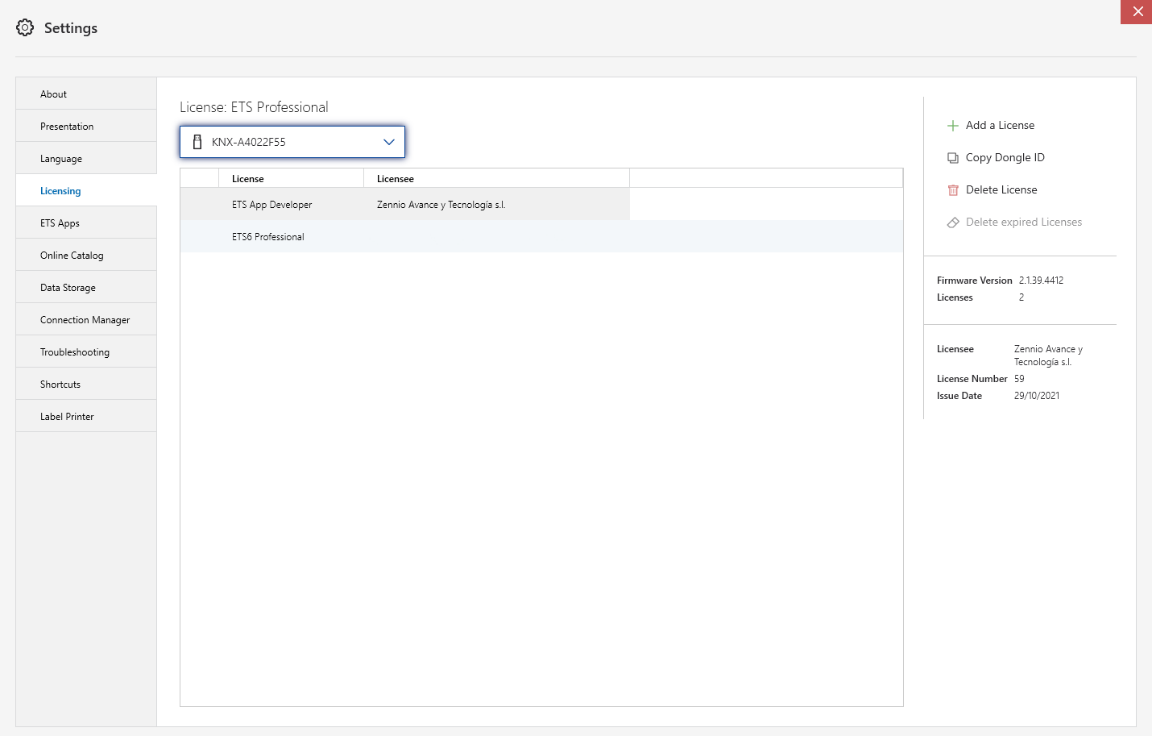
- Enter the ETS license reference in the ETS App Product Key field.

- Click on “Download License” to get the file generated after linking the ETS App to the ETS license.
- Associate the installed ETS license to the ETS App Zennio FW Updater. For this purpose, access again to “Licensing” tab of the ETS setting window, click on “Add a License” and add the previously downloaded .license file.
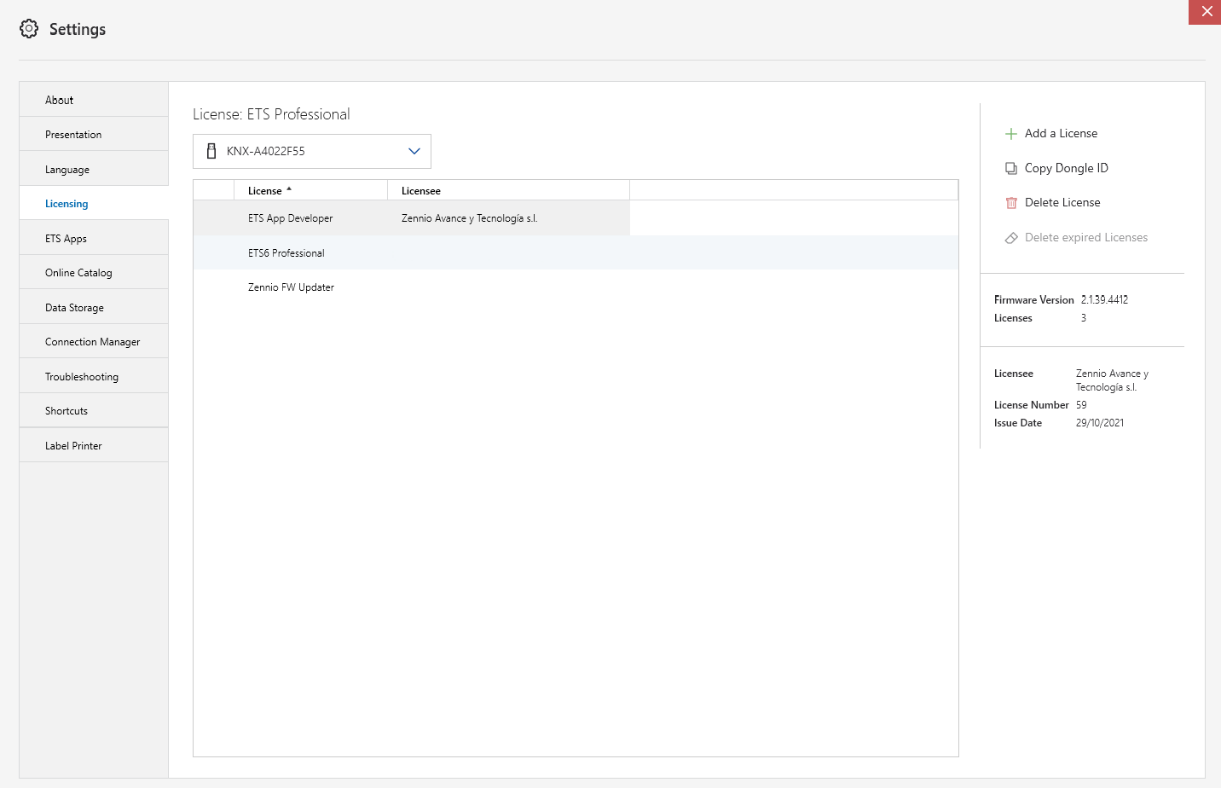
Once downloaded, the application will be installed in ETS:
- In the ETS settings window, at the top right, select the "ETS Apps" tab. A
pop-up similar to the following will appear:
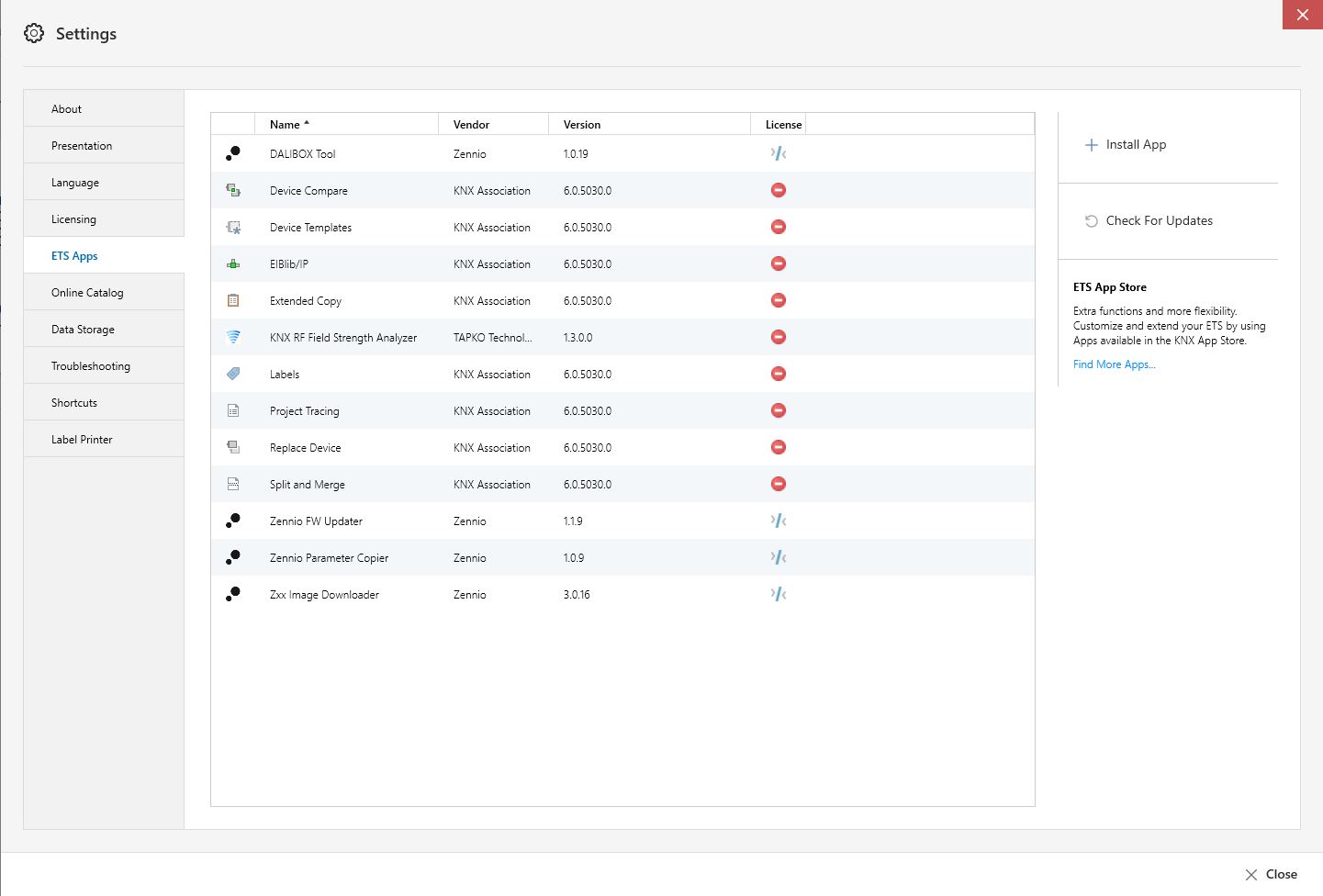
- Click on "Install App" and select the file "Zennio_FW_Updater.etsapp".
Once the application is installed, it will appear in the list of applications as shown in Figure 6, and will be available in the Apps tab of the toolbar of any project.

Note
To avoid compatibility problems, use the latest published version of ETS.