Traduction en cours. Ce manuel est affiché en anglais en attendant sa version française.Zennio FW Updater: 3. Functionality
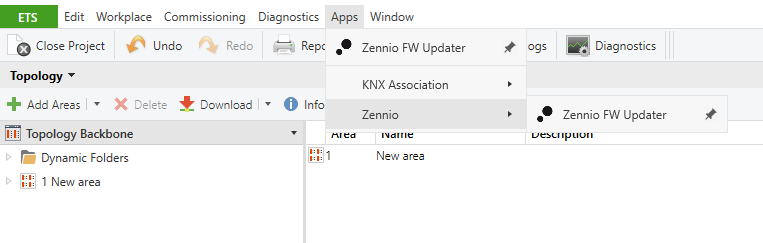
Once the application is installed, it can be accessed from the toolbar of a project: Apps → Zennio → Zennio FW Updater. When clicking on it, it will open in a new window.
The window has two zones and several buttons, as shown in the following figure:
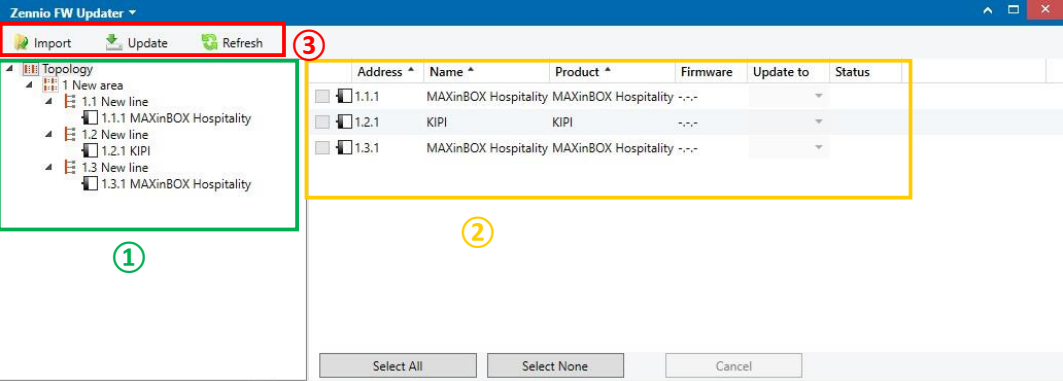
The area marked with the number ① is the Topology. All the Zennio devices of the project will appear here, sorted according to the topology.
The area marked with the number ② is the Grid of devices. Here it will be displayed the devices of the level (and sub-levels) selected in the topology. Multiple selection is not allowed, so only one area, one line, one device or the entire topology can be selected.
On the bottom, there are 3 buttons: “Select All” and “Select None”, as shortcuts, and “Cancel”, to stop the Refresh and Update processes.
For each device the following information is shown:
- Address: individual address of the device.
- Name: name of the device in the project.
- Product: name of the application program of the device.
- Firmware: actual firmware version.
- Update to: firmware version selected for updating.
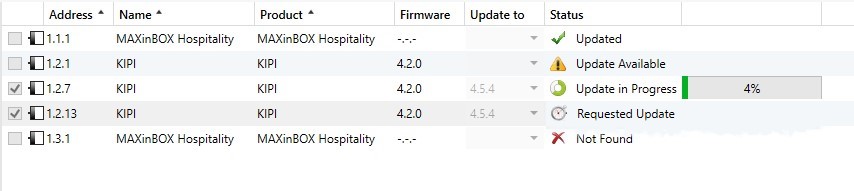
- Status: actualization process status. The actualization process status can be:
- Updated: the device has the latest version available or is not upgradeable.
- Requested Update: the device and a higher firmware version have been selected for upgrading.
- Update Available: there is a higher firmware version available to upgrade.
- Update in progress: the download is in process. A progress bar with the percentage completed will appear to the right.
Other possible statuses are errors, represented with a red cross:
- Not Found: the device does not respond or is not present on the line.
- Failed Update: the download of the new operating system was not completed correctly.
- Factory Default Setup Key may have been restored: on secure devices, after the operating system update the device will be in the factory state, so a complete download will be required to re-enable security. Only then its status will be updated after “Refresh”.
Note
If the project has many devices, it is advisable to limit the number of devices selected in the topology, as the refresh process could overload the bus.
In area marked with the number ③ three buttons are available which allow to perform the update process: Import, Update, and Refresh. They will be explained in detail in the following sections.
3.1. Import
Clicking on the "Import" button on the toolbar will open a dialog box asking the user to select the binary firmware update file(s):
- If the selected file is invalid, Zennio FW Updater will discard it and display a warning window.
- If the selected file is already imported, Zennio FW Updater will overwrite the existing file.
- If the file is valid, it is added to the drop-down list in the “Firmware” column in the grid of devices, for the devices compatible with that version.
The update files will have the extension *.bin and can be downloaded from the Zennio website in the same way as the product databases *.knxprod.
3.2. Refresh
When clicking on the "Refresh" button the information about firmware and current status of each device is updated.
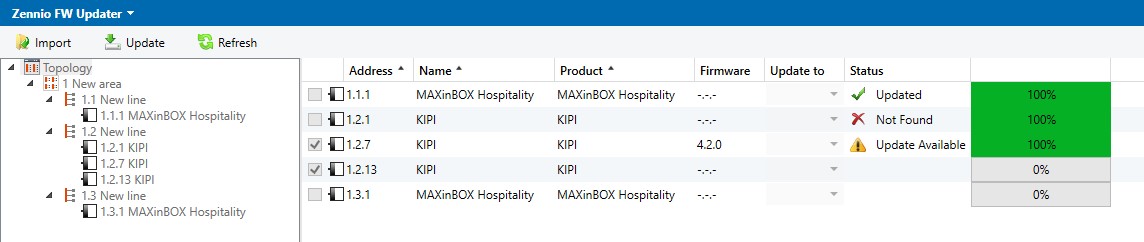
Zennio FW Updater will not perform the "Refresh" operation automatically at the opening, to prevent KNX bus overload in case there were a large number of Zennio devices in the project. Therefore, the user will have to launch this operation manually when he has delimited the devices with which he wants to work.
Once Zennio FW Updater obtains information about a device, it will keep this information until the next "Refresh" operation, regardless of whether or not the device is displayed in the device grid.
For more information on the status of the devices, see the section 3.
3.3. Update
When clicking the "Update" button, the firmware will be updated to the version choose in "Upgrade to" for each selected device in the device grid, sequentially. Only devices for which a firmware update is available can be selected.
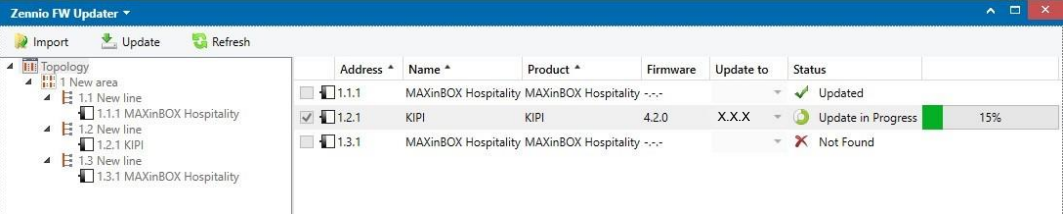
Once the updates are complete, Zennio FW Updater will perform a refresh operation in order to update the status of each device.
Note
Meanwhile the update operation is in progress, no action will be allowed on the Zennio FW Updater working panel.
Note
Meanwhile a device has a BCU key, an update cannot be performed on it, therefore, it will be necessary to remove the BCU key for the update.
Note
Meanwhile the Zennio FW Updater application is open after its use, the programmer is disabled for another client, therefore, it will be necessary to close the application to be able to use it.