KNX Secure Guide: 2.1. KNX Data Secure
From ETS version 5.7 onwards, the use of KNX security and all its functionalities to work with secure devices is enabled.
In this section a guide for the configuration of KNX secure in ETS projects is presented.
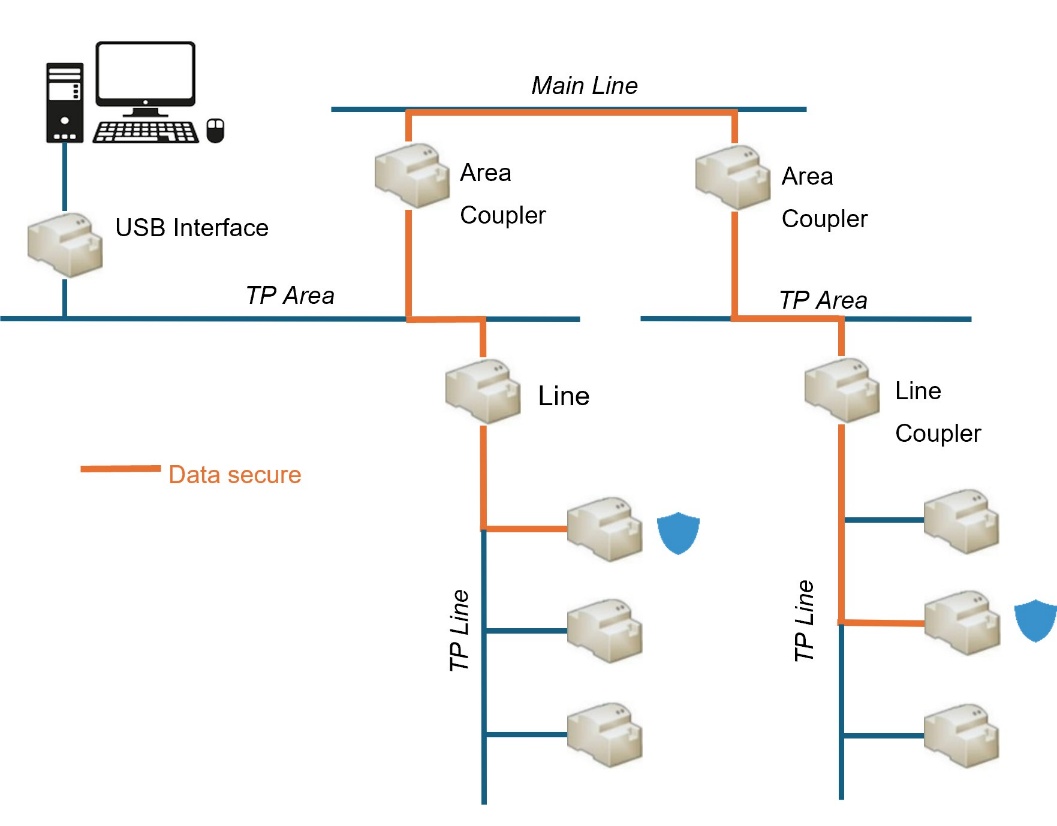
Its implementation ensures communication between end devices. Secure KNX devices will transmit encrypted telegrams to other devices that also have KNX secure.
It will be possible to choose for each group address, whether the communication will be secure or not.
2.1.1. Secure Commissioning
When a device has a secure commissioning, the communication between ETS and the device will be carried out in safe mode.
A device should have a secure commissioning configured whenever there is runtime security, i.e. one of its objects is associated to a safe group address (see section 2.1.2).
Note
Please note that the presence of a secure device within an ETS project, implies the protection of the project itself with a password.
The secure commissioning can be set from the "Configuration" tab in the "Properties" window of the device.
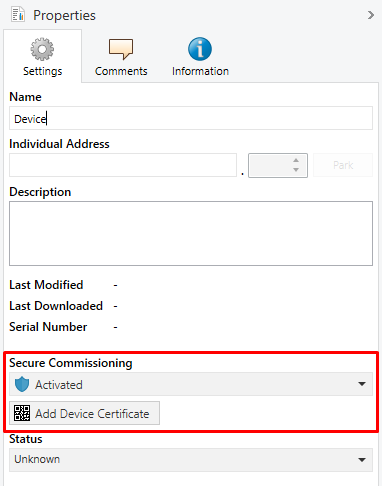
- Secure Commissioning [Activated / Deactivated]: enables to choose whether ETS should communicate with the device in safe mode or not, i.e. to enable or disable KNX secure on the device.
If the "Activated" option is selected, it will be mandatory to have a password for the project.
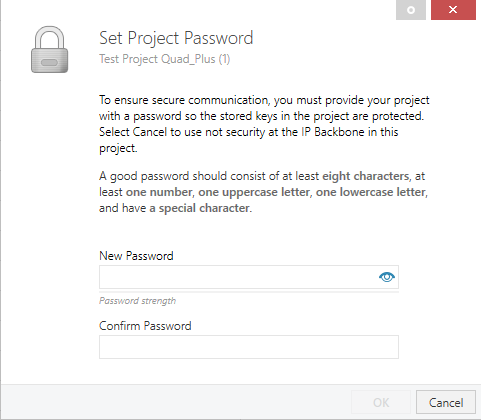
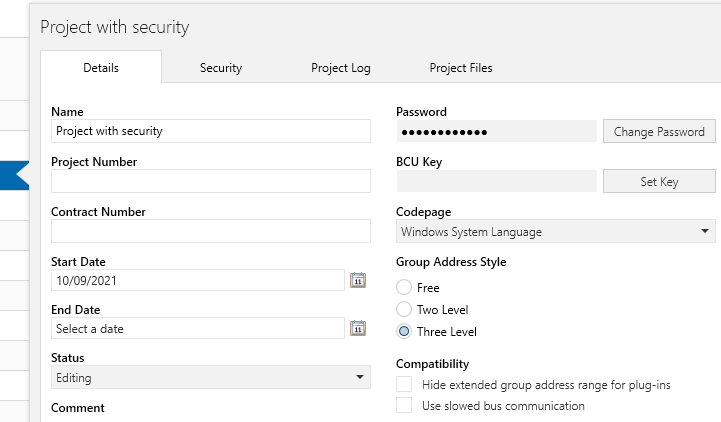
An additional way to set a password on a project is through the main window ("Overview") of ETS. When selecting the project, a section will be displayed on the right side where, under "Details", the desired password can be entered.
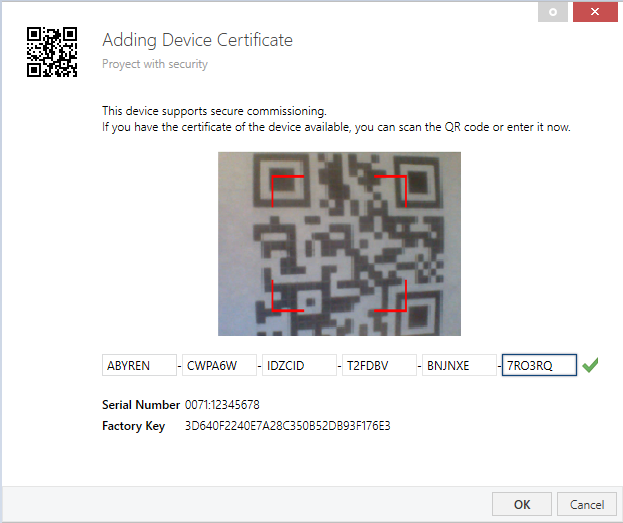
- Add Device Certificate: If secure commissioning is “Activated”, ETS will, in addition to the password, request a unique certificate for the device.
The certificate to be added [xxxxxx-xxxxxx-xxxxxx-xxxxxx-xxxxxx-xxxxxx-xxxxxx-xxxxxx-xxxxxx] consists of 36 alphanumeric characters generated from the serial number and the FDSK (Factory Default Setup Key) of the device. It is included with the device and contains the corresponding QR code for easy scanning.
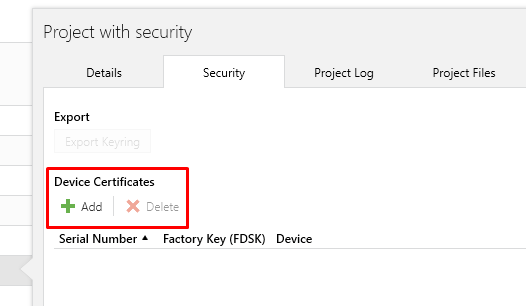
Device certificate can also be added from the main ETS window ("Overview"), by accessing the "Security" section of the new window displayed on the right side when selecting the project.
During the first secure commissioning, ETS replaces the FDSK of the device with a new key (Tool Key) that is generated individually for each device.
If the project is lost, all tool keys will be lost with it, therefore, the devices cannot be reprogrammed. In order to be able to recover them, the FDSK must be reset.
The FDSK can be restored in two ways: after an unloading, provided that it is performed from the project in which the first commissioning was carried out, or after a manual factory reset (see section 3).
2.1.2. Secure Group Communication
Each object of a secure device can transmit its information in encrypted form, thus establishing security in communication or operation.
For an object to have KNX security, it has to be configured from the group address itself, i.e. the address to which the object will be associated.
ETS ParameterisationThe communication security settings are defined from the "Configuration" sub-tab in the "Properties" window of the group address.
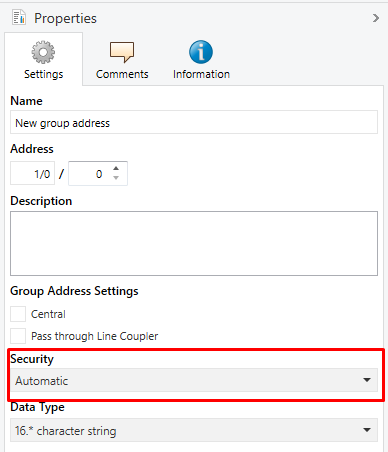
- Security [Automatic / On / Off]: in “Automatic” setting, ETS decides whether encryption is activated if the two linked objects can communicate securely.
Notes
- All object linked to a secure group address shall be secure objects.
- Same device can have both secure and non-secure group address.
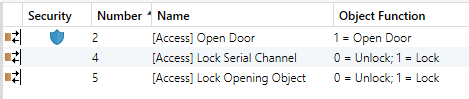
Secure Objects can be identified with a “blue shield”.