Flat / Tecla RGB: 2. Configuration
Please note that the screenshots and object names shown next may be slightly different depending on the device and on the application program.
2.1. General - Flat / Tecla RGB
In order to allow the device to perform the desired functions, a number of options must be parameterized, either related to its general behaviour (horizontal/vertical orientation, sounds, LED brightness levels…) or to advanced features (lock procedure of the touch panel, cleaning function, welcome back object, etc.).
2.1.1. Configuration
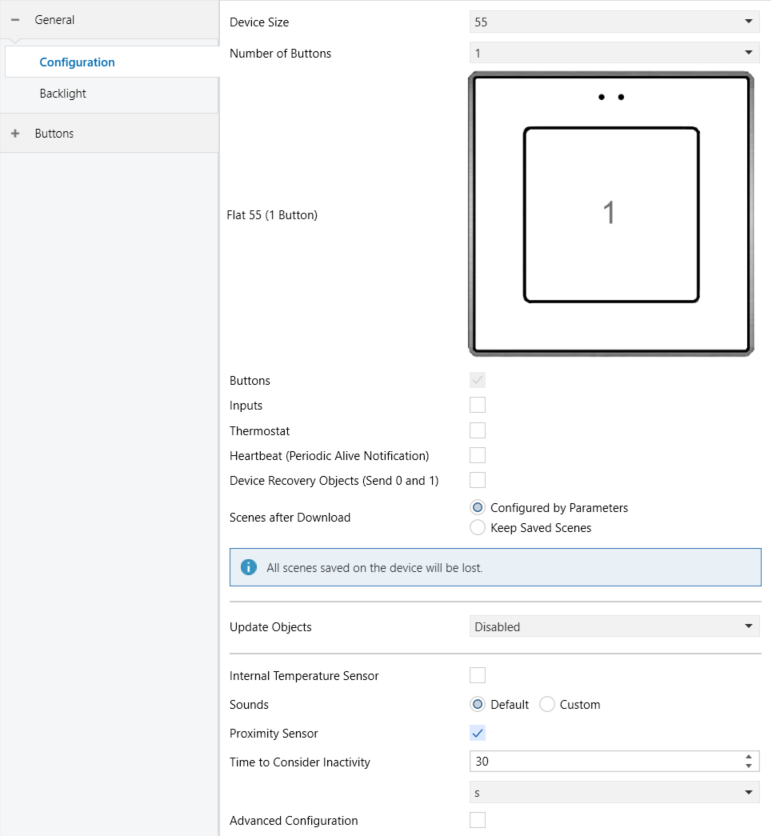
In the "Configuration" tab, the general settings are displayed. Most are checkboxes that enable/disable other functionalities. With regard to the configuration of the capacitive push buttons, the following parameters are available (the presence of some will depend on the device):
- Device Size [55 / 70 / X / XL]: the application program can be downloaded in all sizes available for each device. If the correct option is not selected, programming will occur correctly based on the number of buttons available.
- Number of buttons [1 / 2 / 4 / 6 / 8 / 10]: the application program can be downloaded in all possible versions of each device. The values of this parameter depend on the family. If the correct option is not selected, the push buttons will not work.
Note
ETS will show a figure with the final distribution of the push buttons.
- Device Orientation [Horizontal (Rotated) / Vertical (Normal)]: enables horizontal or vertical orientation to be assigned to the device, for easy identification of the buttons during configuration process.
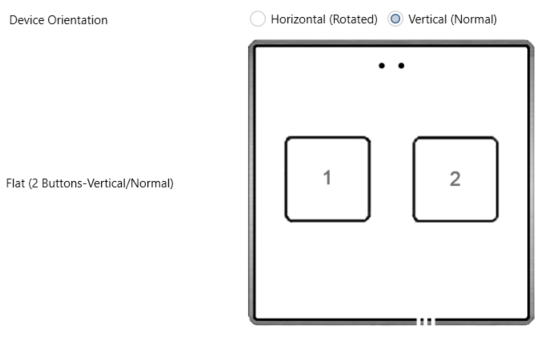
To prevent inconsistency in the configuration, please note the following criterium:
| Vertical (Normal): The sensors are centred and at the top of the device. | 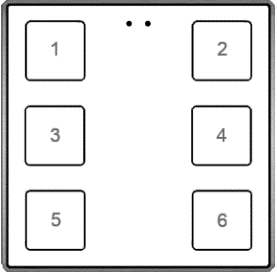 | Horizontal (Rotated): The sensors are centred and located on the left side of the device. | 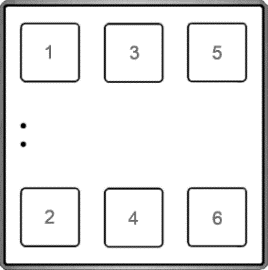 |
Figure 3. Orientation
Note
For XL models, the default orientation will be horizontal, so ETS will display [Vertical (Rotated) / Horizontal (Normal)], and the sensors are located in the centre of the device.
- Buttons [enabled]: read-only parameter to make it evident that the “Buttons” tab is always enabled in the tab tree on the left. See section 2.2 for details.
- Inputs [disabled / enabled]: enables or disables the “Inputs” tab in the tree on the left, depending on whether the device will or will not be connected any external accessories. See section 2.3 for details.
- Thermostat [disabled / enabled]: enables or disables the “Thermostat” tab in the tree on the left. See section 2.4 for details.
- Heartbeat (Periodic Alive Notification) [disabled / enabled]: incorporates a one-bit object to the project (“[Heartbeat] Object to Send ‘1’”) that will be sent periodically with value “1” to notify that the device is still working (still alive).

Note
The first sending after download or bus failure takes place with a delay of up to 255 seconds, to prevent bus overload. The following sendings follow the parameterised period.
- Device Recovery Objects (Send 0 and 1) [disabled / enabled]: this parameter lets the integrator activate two new communication objects (“[Heartbeat] Device Recovery”), which will be sent to the KNX bus with values “0” and “1” whenever the device begins operation (for example, after a bus power failure). It is possible to parameterise a certain Delay [0…255] [s] to this sending.

Note
After download or bus failure, the sending takes place with a delay of up to 6,35 seconds plus the parameterised delay, to prevent bus overload.
- Scenes after Download [Configured by Parameters / Keep Saved Scenes]: allows to assign the option to update scenes only on the first download of the device version or to delete the saved scenes after the download of the device version.
Note
If “Keep Saved Scenes” option has been configured, but it is the first download of the device or a different version from the current one, the values configured by parameter will be adopted. If new scenes are added in successive downloads, it will be necessary to perform a download by checking the option “Configured by Parameters” to ensure the correct operation of these scenes.
- Update Objects [Disabled / After Programming / After Reset / After Programming and Reset]: enables the sending of read requests to update status objects and indicators. If enabled, the following parameter will appear:
- Delay [0…10…65535] [s / min / h]: set a delay time until the start of sending read requests.
- Internal Temperature Sensor [disabled / enabled]: enables or disables the “Temperature Sensor” tab in the tree on the left. See section 2.1.2 for details.
Note
To ensure correct temperature sensor measurement, when it is enabled, the Time to Consider Inactivity parameter will be limited.
- Sounds [Default / Custom]: sets whether the sound functions (button beeps, alarm and doorbell) should work according to the pre-defined configuration or to a user-defined configuration. See section 2.1.4 for details.
- Proximity Sensor [disabled / enabled]: enables the proximity sensor. This functionality permits “waking up” the device when detecting presence, see section 2.1.5.
- Time to Consider Inactivity [1…30…255] [s / min / h]: allows setting a time after which, if no pulsation or proximity detection has occurred, the LEDs turn off (or acquire the brightness level configured, see section 2.1.3).
Note
If the internal temperature sensor is enabled, the units will be restricted to seconds.
- Advanced Configuration [disabled / enabled]: enables or disables the “Advanced” tab in the tree on the left. See section 2.1.6 for details.
2.1.2. Temperature Sensor
The internal temperature probe can monitor the ambient temperature of the room, thus making the device capable of reporting it to the KNX bus and of triggering certain actions when the temperature reaches specific values.
Please refer to the specific manual “Temperature Probe” (available for detailed information about the functionality and the configuration of the related parameters.
2.1.3. Backlight
RGB capacitive touch switches incorporate a functional module for controlling the illumination of the button LEDs according to the operating mode.
It is possible to configure custom illumination levels for the device LEDs. Two operating modes are available for this purpose: normal mode and night mode. The latter is optional and intended for temporary situations in environments where excessive light may be disturbing to the user. Switching between both modes can be performed via a 1-bit object and/or a scene object.
Within each mode, each LED can switch between three states: OFF (which does not necessarily mean “no light”), ON (which does not necessarily mean “light on”) or inactivity, which defines the illumination level of the LEDs after a period of inactivity. When in inactivity mode, the LEDs automatically revert to the configured active illumination level upon user interaction with the device (detection via the proximity sensor or an enabled button press).
ETS PARAMETERISATION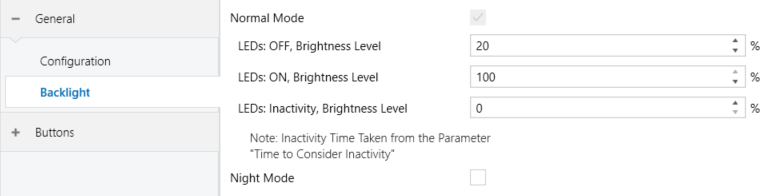
- Normal Mode [enabled]:
- LEDs: OFF, Brightness Level [0…20…100] [%].
- LEDs: ON, Brightness Level [0…100] [%].
- LEDs: Inactivity, Brightness Level [0…100] [%].
- Night Mode [disabled / enabled]. When this option is enabled, parameters for setting the night mode brightness level and for managing both operating modes are displayed.
- LEDs: OFF, Brightness Level [0…1…100] [%].
- LEDs: ON, Brightness Level [0…10] [%].
- LEDs: Inactivity, Brightness Level [0…100] [%].
- Control Object: 1-Bit [disabled / enabled]. Provides the option to switch the operating mode via a binary object (“[General] Backlight mode”).
- Control Object: Scene [disabled / enabled]. It is also possible to modify the backlight mode using a scene value received by the “[General] Scene: Receive” object. When enabled, the following parameters are available:
- Normal Mode: Scene Number (0 = Disabled) [0…1…64]. Defines the scene value that activates the normal mode.
- Night Mode: Scene Number (0 = Disabled) [0…1…64]. Defines the scene value that activates the night mode.
- Backlight Mode after ETS Download [Normal Mode / Night Mode]: sets the operating mode that the device will start with after programming.
2.1.4. Sounds
Capacitive touch switches can emit a brief beep as acoustic feedback when a button is pressed.
Enabling the button sounds can be done either by parameters or through an object, being also possible to define in parameters if the button sounds should be initially enabled or not.
Moreover, these can also emit the following sounds on request (through the corresponding communication objects) if enabled:
- Doorbell sounds: a single beep.
- Alarm sounds: a sequence of brief beeps with a higher pitch. The sequence will only stop when the alarm object gets deactivated or when the user touches any of the buttons (this, in addition to deactivating the alarm, will trigger the button action).
The range of sounds emitted will be different depending on the sound type selected.
ETS ParameterisationIn case the default button beep sound matches the requirements of the installation and the doorbell and alarm functions are not necessary, the Sounds parameter in the general “Configuration” tab (see section 2.1.1) can be set to “Default”.
This will also imply that the button beeps will be unconditional, as it will not be possible to disable this function through an object.
On the other hand, if set to “Custom”, a specific tab named “Sounds” will show up in the tab tree on the left.
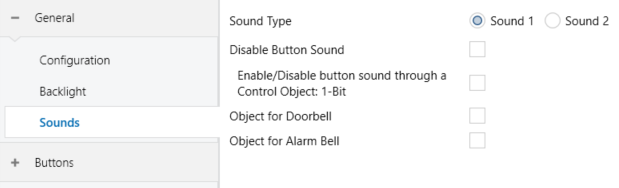
The default configuration of this tab is equivalent to the one mentioned above. However, the following parameters can be customized:
- Sound Type [Sound 1 / Sound 2]: sets which sounds range uses the device.
- Disable button sound [disabled / enabled]: enables the buttons beeping. If enabled, the following parameters will also be available:
- Enable / Disable button sounds through a 1-bit object [disabled / enabled]: makes it possible to disable / resume the button beeping function in runtime by writing to a specific object (“[General] Sounds - Disabling Button Sound”). If enabled, it will be shown:
- Value [0 = Disable; 1 = Enable / 0 = Enable; 1 = Disable]: configures the values that will disable/enable the acoustic signals after pressing.
- Status After ETS Download [Disabled / Enabled]: sets whether the button beeping function should start up enabled or disabled after an ETS download.
- Enable / Disable button sounds through a 1-bit object [disabled / enabled]: makes it possible to disable / resume the button beeping function in runtime by writing to a specific object (“[General] Sounds - Disabling Button Sound”). If enabled, it will be shown:
- Object for Doorbell [disabled / enabled]: enables or disables the doorbell function. If enabled, a specific object (“[General] Sounds - Doorbell”) will be included into the project topology, and the following parameter will appear:
- Value [0 = No Action; 1 = Doorbell / 0 = Doorbell; 1 = No Action]: determines the value that will activate the ring function.
- Object for Alarm Bell [disabled / enabled]: enables or disables the alarm function. If enabled, a specific object (“[General] Sounds - Alarm”) will be included into the project topology, and the following parameter will appear:
- Value [0 = Stop Alarm; 1 = Start Alarm / 0 = Start Alarm; 1 = Stop Alarm]: determines the value that will activate the alarm function.
2.1.5. Proximity Sensor

- Proximity Sensor [disabled / enabled]: enables the proximity sensor functionality. This allows the device to “wake” upon detecting presence via the proximity sensor. Whenever the device is in the idle state, a “1” will be sent via the “[General] Proximity detection” object when proximity is detected. This object is always available, even if the proximity sensor is not enabled.
It is also possible to enable or disable the sensor at runtime using the object “[General] Proximity Sensor”.
On the other hand, the object “[General] External Proximity Detection” is always available and allows simulating a proximity detection equivalent to detecting proximity by the internal sensor. In this way it would be possible to delegate proximity detection to another device.
- Time to Consider Inactivity [0…30…255] [s / min / h]: sets the period after which, if no proximity has been detected, the device transitions to the idle state
2.1.6. Advanced Configuration
Independent tab for the parameterisation of some advanced functions. These functions are explained next.
ETS ParameterisationAfter enabling the Advanced configuration from “Configuration” screen (see section 2.1.1), a new tab will be incorporated into the tree on the left.
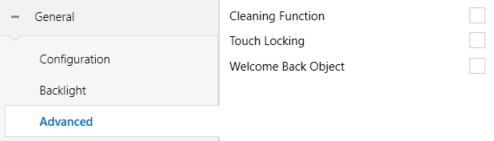
- Cleaning Function [disabled / enabled]: enables or disables the “Cleaning Function” tab in the tree on the left. See section 2.1.6.1 for details.
- Touch locking [disabled / enabled]: enables or disables the “Touch locking” tab in the tree on the left. See section 2.1.6.2 for details.
- Welcome back object [disabled / enabled]: enables or disables the “Welcome back” tab in the tree on the left. See section 2.1.6.3 for details.
2.1.6.1. Cleaning Function
This function allows all buttons to be temporarily locked, blocking and discarding any type of button press while the function is active. It is designed to allow the user to clean the touch area without the risk of performing any unwanted actions.
An option is available to enable a pre-expiry completion alert, which consists of an intermittent beep.
ETS PARAMETERISATIONAfter enabling Cleaning Function in “Advanced” tab, a new tab will be incorporated into the three on the left.

- Time to Exit Cleaning Status [5…15…65535] [s] / [1…65535] [min / h]: time to deactivate the cleaning function once launched via the “[General] Cleaning Function” object.
- Notify Expiration [No / Play Sound]: specifies whether a notification is issued that the cleaning function timer is about to expire. If the alert is enabled, the following a parameter is shown:
- Length of the Warning [1…5…65535] [s / min / h]: sets the lead time before the cleaning function expires at which the alert will begin.
2.1.6.2. Touch Locking
The touch panel of capacitive touch switches can be optionally locked and unlocked anytime by writing a configurable one-bit value to a specific object provided for this purpose. It can also be done through scene values.
While locked, pressing on the buttons will be ignored: no actions will be performed (and no LEDs will change their states) when the user touches on any of the controls.
ETS ParameterisationAfter enabling Touch Locking in “Advanced” tab, a new tab will be incorporated into the tree on the left.
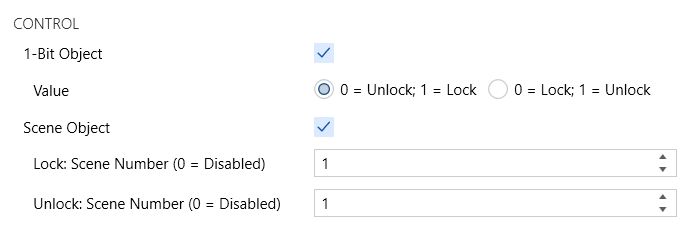
- 1 Bit Object [disabled / enabled]: when marked, the options will show up to select which value should trigger which action.
- Value [0 = Unlock; 1 = Lock / 0 = Lock; 1 = Unlock]: these values are received through the object “[General] Touch Locking”.
- Scene Object [disabled / enabled]: when marked, two specific textboxes will show up to enter the scene numbers [0…1…64] that should trigger each action. These values are to be received through the general “[General] Scene: Receive” object.
2.1.6.3. Welcome Back Object
Capacitive touch switches can send a specific object (the welcome back object) to the KNX bus when the user presses a touch button after a significant amount of time since the last or presence detection. Sending it or not can also depend on an additional configurable condition consisting in the evaluation of up to five binary objects.
Any actions that in normal operation may be executed will not be if the welcome back object is sent to the bus. Thus, if the user presses a button and this causes that the welcome back object is sent, the normal action of that button will not be triggered. On the other hand, if the additional condition is not evaluated to true, the device will react normally. Hence, the action corresponding to the button touch will be executed.
The welcome back object can consist in a one-bit value or a scene value (or both), depending on the parameterisation.
ETS ParameterisationAfter enabling Welcome Back Object, a new tab will be incorporated into the tree on the left.
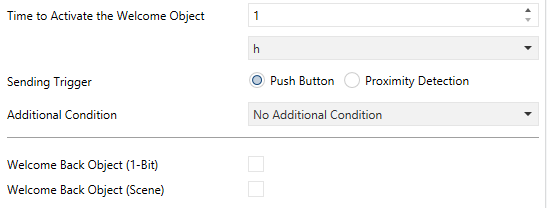
This screen contains the following parameters:
- Timeout to Activate the Welcome Object [1…255] [s / min / h]: sets the minimum time that should elapse after the last button touch (or presence detection, when the proximity sensor is enabled) before the next one triggers the execution of the welcome back function.
- Sending Trigger [Push Button / Proximity Detection]: sets whether the welcome back object is sending after a touch in the screen or when the proximity sensor detects presence.
- Additional Condition: sets if sending the welcome back object should also depend on an external condition. The option by default is [No Additional Condition]. The following are available too:
- [Do not send unless all additional conditions are 0]: the welcome back object will only be sent if all the condition objects are found to have the value “0”.
- [Do not send unless all additional conditions are 1]: the welcome back object will only be sent if all the condition objects are found to have the value “1”.
- [Do not send unless at least one of the additional conditions is 0]: the welcome back object will only be sent if at least one of the condition objects is found to have the value “0”.
- [Do not send unless at least one of the additional conditions is 1]: the welcome back object will only be sent if at least one of the condition objects is found to have the value “1”.
- Welcome Back Object (1-Bit) [disabled / enabled]: checkbox to enable the sending of a 1-bit value (through “[General] Welcome back”) when the welcome back function is triggered and the condition (if any) evaluates to true. The desired value should set in Value [Send 0 / Send 1].
- Welcome Back Object (Scene) [disabled / enabled]: checkbox to enable the sending of a scene run request (through “[General] Scene: Send”) when the welcome back function is triggered, and the condition (if any) evaluates to true. The desired value should be set in Scene Number [1…64].