Flat / Tecla RGB: 2.2. Buttons
Capacitive touch switches have one, two, four, six, eight or ten buttons at the user’s disposal for the execution of actions.
The distribution of the buttons will depend on the device chosen and the orientation selected in “Configuration” (see section 2.1.1), being possible to configure them as single button controls or in pairs by combining any two of them.
- RGB Capacitive Touch Switches with only one button: only one individual control is possible (two-button controls are not available). Moreover, it can only be configured under the normal (vertical) orientation.
- RGB Capacitive Touch Switches with two buttons: up to two individual controls or a pair.
- RGB Capacitive Touch Switches with four buttons: up to four one-button controls can be configured, or up to two two-button controls.
- RGB Capacitive Touch Switches with six buttons: up to six one-button controls, or three two-button controls can be configured.
- RGB Capacitive Touch Switches with eight buttons: up to eight one-button controls, or four two-button controls can be configured.
- RGB Capacitive Touch Switches with ten buttons: up to ten one-button controls, or five two-button controls can be configured.
2.2.1. Configuration - Flat / Tecla RGB
The following is a list of the functions that can be assigned to each button.
- Disabled. The button will not react to user presses, and its LED will not light up.
- Pair A, B, C, D or E. The number of available pairs depends on the selected model), being the function of such pair one of the following:
- Switch.
- Two objects (Short press/Long press).
- Dimmer
- Shutter.
- Room State (Outdoor).
- Individual One-button control:
- Switch.
- Hold & release.
- Two Objects (Short press/Long press).
- Scene.
- Scaling Constant.
- Counter Constant.
- Float Constant.
- Dimmer.
- Shutter.
- LED indicator.
- Room State (Indoor).
- Room State (Outdoor).
- Enumerated Indicator (Colour).
Apart from the button function itself, the desired behaviour of the button LEDs can be set. The different illumination modes have been detailed in Annex I. LED Illumination Modes.
The next sections explain the configuration involved for each of the above functions.
ETS ParameterisationAn independent tab for the parameterisation of the buttons is shown in ETS by default, initially containing only a sub-tab named “Configuration”.
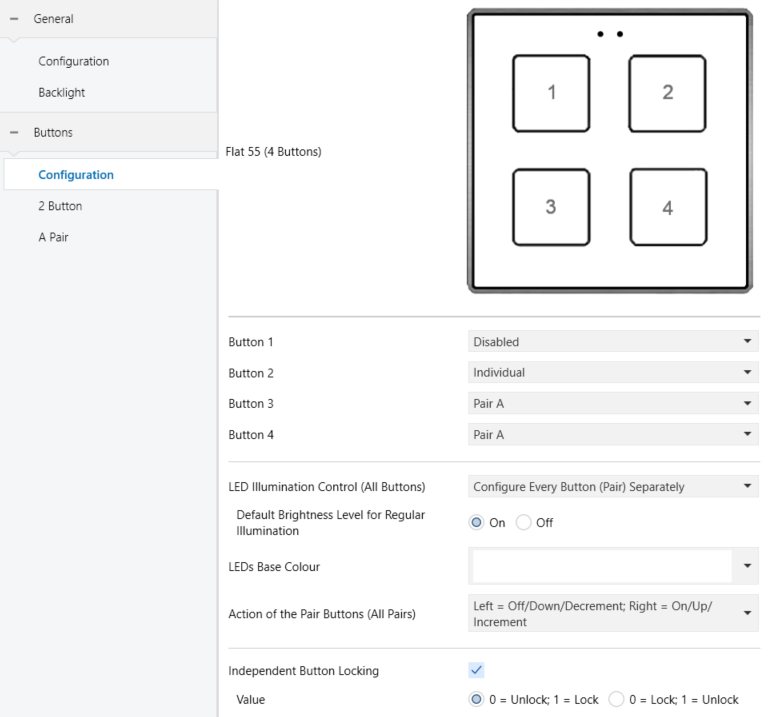
One drop-down list with the following options is shown per button:
- [Disabled]. See section 2.2.1 for details.
- [Individual]. Selecting this option brings a new tab (“x Button”, where “x” depends on the button), which will make it possible to configure the functionality of that particular touch button. See section 2.2.2 for details.
- [Pair X]. Sets that this touch button will belong to a two-button control (where X is A, B, C, D or E, depending on the model). Once one pair has been assigned to two buttons (and not before), a new tab (“X Pair”) will show up in the tab tree, in order to configure the desired functionality. See section 2.2.3 for details.
This tab also provides several parameters to jointly define the behaviour of the illumination and colour of all LEDs on the device.
- LED Illumination Control (All Buttons) [Regular / State-Dependent (Where Available) / State-Dependent (Both LEDs) (Where Available) / Dedicated Object / Configure Every Button (Pair) Separately]: determines the illumination mode for all LEDs. If the default value is selected, a specific parameter will be shown on each button’s tab to select the desired behaviour of that LED.
- Default Brightness Level for Regular Illumination [On / Off]: sets the brightness level that the LED(s) will use while the device is not idle and no presses are being made on the button.
Note
This parameter will be shown only if “Regular” or “Configure Every Button (Pair) Separately” was selected in the previous parameter.
If the “Dedicated Object” option is selected, the following parameters can be configured:
- Value [0 = Off; 1 = On / 0 = On; 1 = Off]: sets the polarity of the individual communication objects dedicated to LED illumination for each enabled button.
- Colour: On [Colour selector (Neutral white)]: defines the hue used to illumination the LED when its corresponding dedicated object sets the “On” state.
- Colour: Off [Colour selector (Neutral white)]: defines the hue used to illumination the LED when its corresponding dedicated object sets the “Off” state.
- LEDs Base Colour [Colour selector (Neutral white)]. Allows a base colour to be configured for all LEDs. This colour can also be modified at runtime via the “[General] LEDs Base Colour” object.
Note
Via the communication object it is not possible to select the “No Colour” option. The colour order corresponds to the descending order shown in Figure 40.
If at least one two-button control is being configured (either Pair X), an additional parameter (Action of the pair buttons (All Pairs)) will be available to determine an operation criterion. The options are:
- [Left = Off/Down/Decrement; Right = On/Up/Increment]
- [Left = On/Up/Increment; Right = Off/Down/Decrement]
- [Every button pair is configured separately]. If this option is selected, a parameter will appear on the configuration tab of each enabled pair to define the operating criterion.
Lastly, it is possible to lock presses on each button individually.
- Independent Button Locking [disabled / enabled]: if the default value is kept, a parameter of the same name will appear on the tab of each individual button or pair.
- Value [0 = Unlock; 1 = Lock / 0 = Lock; 1 = Unlock]: sets the polarity of the corresponding object.
2.2.2. Individual
Buttons configured to work as individual (separate) controls can be assigned any of the following control functions:
- LED Indicator: user presses will not trigger any function although the LED will set the brightness level and the colour (On or Off) depending on the values received from the bus.
- Switch: whenever the user touches the button, a binary value will be sent to the KNX bus. This value is configurable and may be “0”, “1” or alternate with every touch according to the sequence 1 → 0 → 1 → …
Under a “State-Dependent” LED illumination, the LED will remain at the On/Off brightness level (with the corresponding colour for each state) according to the current state (On/Off) of the object.
- Hold & Release: as soon as the user touches the button, a binary value (“0” or “1”, configurable) will be sent to the KNX bus. Moreover, as long as the user releases the button, another value (“0” or “1”, also configurable) will be sent through the same object.
The “State-Dependent” LED mode sets the LED brightness and colour On when the communication object has the same result.
- Two Objects (Short Press/Long Press): specific binary values will be sent both after a short or a long press (a different object will be used in each case).
Under a “State-Dependent” LED illumination, the LED will remain lit and coloured according to the current state (On/Off) of either one object or the other, which can be configured in parameters. However, if LED Illumination Control (All Buttons) has been set to “State-Dependent (Where Available)”, only the short press object will apply.
- Scene: after the user touches the button, an order to run a specific scene (configurable) will be sent to the bus. If enabled in parameters, orders to save the scene can also be sent to the bus after a three-second press on the button.
The “State-Dependent” LED mode is not available for this function.
- Scaling Constant: sends a percentage value (configurable) to the bus when the user touches the button.
Under a “State-Dependent” LED illumination, the LED will remain at the brightness level and colour of On/Off depending on whether the current value of the object matches the one parameterised. This object can also be written from the bus, which will update the LED according to the new value.
- Counter Constant: sends an integer value (configurable) to the bus when the user touches the button. This value can be one-byte or two-byte sized, as well as signed or unsigned.
The “State-Dependent” LED illumination mode is analogous as for the “Scaling Constant” function.
- Float Constant: sends a two-byte floating point value (configurable) to the bus when the user touches the button.
The “State-Dependent” LED illumination mode is analogous as for the “Scaling Constant” and “Counter Constant” functions.
- Dimmer: implements a one-button light control that sends orders to the KNX bus, which can then be executed by light dimmers. These orders can be configured for short press or long press:
- Action on Short Press:
- “Send On”: a value of On is sent.
- “Send Off”: a value of Off is sent.
- “Switch Between On and Off”: toggles between sending On and Off. Commutation is initiated according to the lighting percentage status. If a value of 0% is present, an On will be sent. Otherwise, the value sent will be an Off.
- “Scene”: the configured scene value is sent.
- “Absolute Dimming”: a percentage set in the range [0…100][%] is sent.
- Action on Long Press:
- “Dimming Down”: the parameterised control step is adjusted downwards.
- “Dimming Up”: the parameterised control pitch is adjusted upwards.
- “Switch Between Dimming Up and Down”: toggles between dimming up and down based on the last percentage status value. In case of 0%, it will send the object to increment, and vice versa for the value of 100%. If this value is between 1-99%, it will send the inverse regulation step to the last one sent.
- Action on Short Press:
Note
That the device considers that the current light level is the value of a specific one-byte object provided to be written from the KNX bus (i.e., to receive feedback from the dimmer). This object is internally updated after a short or long press but linking it to the real dimmer status is highly recommended.
Under a “State-Dependent” LED illumination, the LED will set either the On brightness level and colour, or the Off level and colour, according to the value of the aforementioned status object (i.e., Off level/colour when the value is 0% and On level/colour in any other case).
Note
After a bus recovery, the light dimmer should send back the status object so the control and the LED update their own state, instead of simply recovering the previous one.
- Shutter: implements a one-button shutter control that sends orders to the KNX bus, which can then be executed by an actuator. Two control types can be configured:
- “Standard”: the device will react to both long and short presses, being possible to send the bus the following commands:
- Move (raise/lower) orders (on long presses).
- Stop/Step orders (on short presses).
Being a one-button control, the direction of the motion will alternate (upwards/downwards) for both the move and the step orders after every long press. However, there are some exceptions to this alternation:
- On a short press: a step-up order will be sent if the last long press made the shutter move up, or if the current position is found to be 100%. On the other hand, a step-down order will be sent if the last long press made the shutter move down or if the current position is found to be 0%.
- On a long press: a move-up order will be sent if the last short press caused a step-down order or if the current position is found to be 100%. On the other hand, a move-down order will be sent if the last short press caused a step-up order or if the current position is found to be 0%.
As usual in the KNX standard, stop/step orders are interpreted by the actuators as a request to move the slats one step up or down (in case the shutter is still) or as a request to interrupt the motion of the shutter (in case it is already moving up or down).
Capacitive touch switches are aware of the current position of the shutter through a specific object which should be linked to the analogous object of the shutter actuator in order to receive feedback. This object is initialised with value “50%” after a download or a bus failure; therefore, the actuator is required to update it with the real value after the bus recovery.
- “Hold & Release”: the device will send an order to move the shutter when the button is touched, and the order to stop it as soon as it is released. Hence, short or long touches have the same effect: the shutter will remain in motion as long as the user keeps holding the button.
The direction of this motion (upwards or downwards) will alternate with every touch, according to the following sequence: downwards → upwards → downwards → …
- However, there are some exceptions to this alternation:
- If the position of the shutter is found to be 0%, the next order will lower the shutter.
- If the position of the shutter is found to be 100%, the next order will raise the shutter.
- “Standard”: the device will react to both long and short presses, being possible to send the bus the following commands:
The “State-Dependent” LED illumination mode is not available for this function.
- Room State (Indoor): allows controlling the room states (“Normal”, “Make Up Request”, “Do Not Disturb”). Pressing the button will activate the “Do Not Disturb” or “Make Up Request” status (as configured) or deactivate it to return to “Normal” status.
Depending on the parameterisation and the current value of object, after a short press the following values will be transmitted.
| Parameterisation | Current Object Value | Transmitted Value |
|---|---|---|
| Make Up Request | Do Not Disturb / Normal | Make Up Request |
| Make Up Request | Normal | |
| Do Not Disturb | Normal / Make Up Request | Do Not Disturb |
| Do Not Disturb | Normal |
If the LED illumination es “State-Dependent”, LED will set brightness level and colour based on the object’s current value and the parameterisation.
Example: State: “Make Up Request”
- If the room status control object has the value “Normal” and press is made → the LED illuminates at the brightness level and with the colour configured for “Make Up Request”.
- If the room status control object has the value “Make Up Request” and a press is made → the LED illuminates at the Off-brightness level and with the colour configured for “Normal”.
- If the opposite of the parameterised state (“Do Not Disturb”) is written to the room status control object → the LED illuminates at the Off-brightness level and with the colour configured for “Do Not Disturb”
- Room State (Outdoor): LED illumination of the button indicates whether the room requires cleaning or is in "Do Not Disturb" status. In addition, with a long press, it is possible to query the status of the room (“Occupied / Not Occupied”) or to change the status of the room to "Make Up in Progress".
The following options can be configured:
- “Disabled”: the push button does not react to presses.
- “Check Occupancy”: allows notification of the occupancy status of the room by flashing the indicator LED. Once the press has exceeded the time threshold configured for its detection, a beep will be emitted and the parameterised indicator for the current occupancy status will flash for 5 seconds. After this time, the usual “DND / MUR” indication returns.
If a bus failure occurs while an occupancy query is in progress, the device will start with the corresponding room status. It would be necessary to press again to obtain this information.
Example: Blink: Occupied
- If the occupancy status object is set to "Occupied" and a long press is made → LED flashes for 5 seconds with the colour configured for that state.
- If the occupancy status object is set to "Not occupied" and a keystroke is made → Nothing happens.
- “Make Up in Progress”: allows notification of the start and end of room cleaning. Once the press has exceeded the time threshold configured for its detection, a beep will be emitted, and different sendings will be made to the bus according to the selected options (not mutually exclusive):
- 1-Bit Object: a specific object is displayed for the " Make Up in Progress" status, which will take a On/Off value.
- Link with Room State Object: the action of the button is linked with the room status object so that each press will send a message to the bus, switching the status between “Make Up in Progress / Normal”.
- Notification for “Make Up in Progress” Status: allows notification of the "Make Up in Progress" status by flashing the corresponding LED indicator.
Example: 1: 1-Bit Object:
After pressing:
- Sending “Make Up in Progress” object = “1” (On)
- “Room State” object → No sending or updating of the status
- Notification → No notification of status “Make Up in Progress”
With a new press:
- Sending “Make Up in Progress” object = “0” (Off).
- Example 2: 1-Bit Object: Link with Room State Object:
- After pressing:
- Sending “Make Up in Progress” object = “1” (On)
- Sending “Room State” object = “3” (Make Up in Progress)
- Notification → No notification of status “Make Up in Progress”
- With new press:
- Sending “Make Up in Progress” object = “0” (Off)
- Sending “Room State” object = “0” (Normal)
Example 3: 1-Bit Object: Link with Room State Object:
Notification for “Make Up in Progress” Status:
- After pressing:
- Sending “Make Up in Progress” object = “1” (On)
- Sending “Room State” object = “3” (Make Up in Progress)
- Notification → Flashing of the corresponding indicators
- With new press:
- Sending “Make-up in progress” object = “0” (Off)
- Sending “Room State” object = “0” (Normal)
- Notification → Flashing of indicators stops.
- Enumerated Indicator (Colour): user presses will not execute any function, although the LED will set its brightness level and colour according to the values received from the bus. If a non-configured value is received via the object, the LED will turn off.
When an individual button has been enabled, a specific tab (“n Button”) becomes available under “Buttons” in the tree on the left.
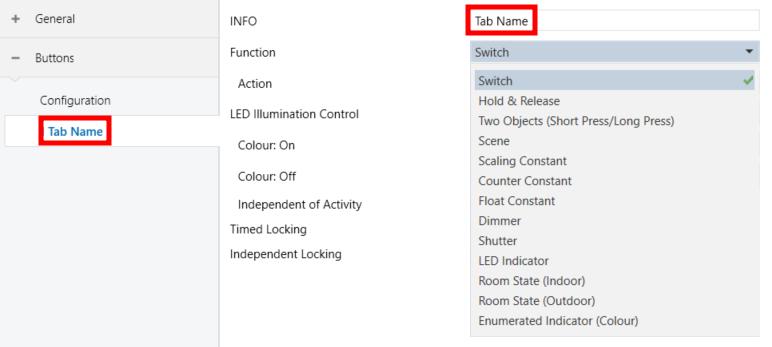
Textbox INFO allows changing the default name of the tab in the left menu, as shows the following figure, identifying each of the enabled controls and their communication objects with the prefix "[Ix][INFO]".
The main parameter that needs to be configured is:
- Function [Switch / Hold & Release / Two Objects (Short press/Long press) / Scene / Scaling constant / Counter constant / Float constant / Dimmer / Shutter / LED indicator / Room State (Indoor) / Room State (Outdoor) / Enumerated Indicator (Colour)]: sets the desired function for the button.
If the option “Configure Every Button (Pair) Separately” is selected in the LED Illumination Control (All Buttons) parameter on the “Configuration” tab (see section 2.2.1), additional parameters will be shown (except for the “Room State (Outdoor)” function, whose illumination control differs):
- LED Illumination Control [Regular / State-Dependent / Dedicated Object]. For the “Switch” and “Dimmer” functions, the default value of the parameter will be “State-Dependent”.
If “Regular” mode is configured, the following parameter will be displayed in ETS:

- Colour [Colour selector (Base Colour)]: sets the colour that the button LED will adopt.
If “State-Dependent” is selected:
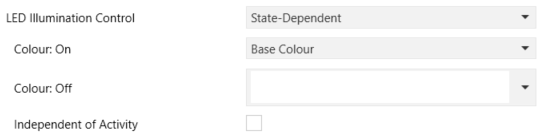
- Colour: On [Colour selector (Base Colour)]: the LED will light up with the configured colour depending on the control status. Depending on the configured control, the condition that determines when the LED colour is set may vary (object value equal to “1”, greater than “0%”, or a specific value).
- Colour: Off [Colour selector (Base Colour)]: defines the colour that will be set on the LED when the condition of the previous parameter is not met (object value equal to “0” or “0%”, or a value different from the configured one).
Note
This condition also depends on the polarity of the object, meaning the behaviour may reversed in controls where the default option of the binary object is not configured.
If the last mode is selected, the “[Ix][] LED - Switch Control” object will be included in the project topology, and several new parameters will appear to configure the LED’s On/Off brightness levels and colours.
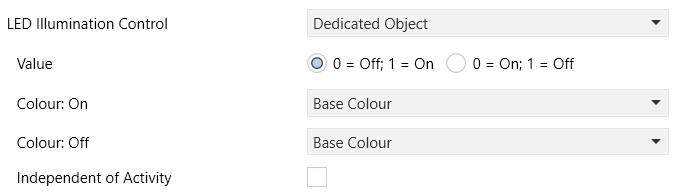
- Value [0 = Off; 1 = On / 0 = On; 1 = Off]: determines the polarity of the communication object.
- Colour: On [Colour selector (Base Colour)]: sets the colour with which the LED will illuminate when the dedicated object’s state is “On”.
- Colour: Off [Colour selector (Base Colour)]: sets the colour with which the LED will illuminate when the dedicated object’s state is “Off”.
Note
For further information, please refer to section 2.2.1 and Annex I. LED Illumination Modes.
Regardless of the configured illumination mode, the following parameter will always be available:
- Independent of Activity [disabled / enabled]: sets the corresponding LED to illuminate as if it were always in the active state, ignoring the inactivity state. The rest of the controls that have not enabled this functionality will continue to illuminate according to the activity status.
Important
If the internal temperature sensor is enabled, particular care is recommended when using this functionality, as heat generated by the LED illumination may affect the temperature measurement.
However, there is another parameter that appears for all previously selected functions except “Shutter”, “LED Indicator” and “Enumerated Indicator (Colour)”, as its use in these cases is not useful.
- Timed Locking [disabled / enabled]: allows an individual button to be locked for a configured time after being pressed. When marked, a specific parameter appears Lock Time [0...5...60] [s]. It starts counting as soon as the button is released.
After bus failure, the button starts without timed locking. It will start again when it is pressed again. This locking is independent of the general button locking, it has no influence on the locking object.
Lastly, as discussed in section 2.2.1, if the Independent Button Locking parameter is enabled, an additional parameter will appear on each button’s tab.
- Independent Locking [disabled / enabled]: enables the communication object of the same name (“[IX][] Independent Locking”), through which this functionality can be activated or deactivated.
Depending on the function, some more parameters are involved (as described next). Please note that in the next pages “[Ix][]” is used as a general notation for the communication objects, where “x” depends on the particular button pair.
2.2.2.1. LED Indicator
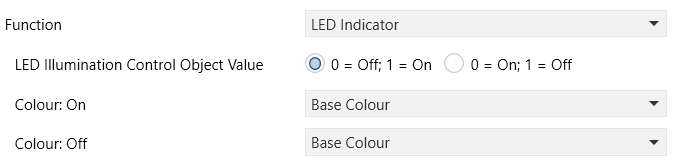
- LED illumination Control Object Value [0 = Off; 1 = On / 0 = On; 1 = Off]: sets the behaviour of the LED of the button.
- Colour: On [Colour selector (Base Colour)]: sets the colour with which the LED will illuminate when the dedicated object’s state is “On”.
- Colour: Off [Colour selector (Base Colour)]: sets the colour with which the LED will illuminate when the dedicated object’s state is “Off”.
Note
This function does not depend on the option selected for LED Illumination Control (All Buttons) (see section 2.2.1).
The options are like those of the dedicated-object LED illumination available for other control types. After assigning this function to the button, object “[Ix][] LED - Switch Control” is included in the project topology, so that the values that determine the state of the LED at a given time can be received from the bus.
2.2.2.2. Switch

- Action [Send 0 / Send 1 / Toggle 0/1]: sets the value to be sent to the bus (through object “[Ix][] Switch - Control: ”X””, where X is the parameterised action) when the user touches the button.
2.2.2.3. Hold & Release

- Action on Hold [Send 0 / Send 1]: sets the value to be sent to the bus (through “[Ix][] Hold & Release - Switch Control”) when the user touches the button.
- Action on Release [Send 0 / Send 1]: sets the value to be sent to the bus (again, through “[Ix][] Hold & Release - Switch Control”) when the user stops touching the button.
2.2.2.4. Two Objects (Short Press / Long Press)
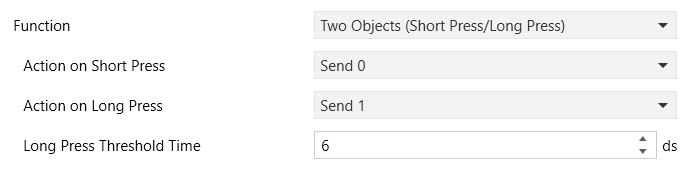
- Action on Short press [Send 0 / Send 1 / Toggle 0/1 / Send 1-Byte Value]: sets the value to be sent to the bus (through “[Ix][] Two objects - Short Press Control: “X”, where X is the parametrised action) when the user short-presses the button.
In case of selecting the latter, an additional parameter (Value [0...255]) will be displayed to enter the desired one-byte value.
- Action on Long press [Send 0 / Send 1 / Toggle 0/1 / Send 1-byte value]: sets the value to be sent to the bus (through “[Ix][] Two objects - Long Press Control: “X”, where X is the parametrised action) when the user long-presses the button.
- Long Press Threshold Time [0…6…50] [ds]: sets the minimum time the user should hold the button in order to consider it a long press.
2.2.2.5. Scene

- Action [Run / Run and Save]: sets whether the value to be sent to the KNX bus (through “[General] Scene: Send”) when the user touches the button will always be a scene run request or –depending on the length of button press– a scene run or save request.
- Scene number [0…1…64]: number of the scene to be sent to the bus, both in the case of the run requests and the save requests.
2.2.2.6. Scaling Constant / Counter Constant / Float Constant

- Object Value [0…100] [%]: sets the value to be sent to the KNX bus when the user touches the button. The available range and the object through which the value is sent depend for each case, as the table below shows.
In case of selecting “Counter Constant”, two specific parameters (Size and Signed) will be displayed to respectively define the size of the constant (“1 byte” or “2 bytes”) and whether it is a signed or unsigned value. Depending on that, the range and the name of the object will vary.
| Available Values | Name of the Object | |
|---|---|---|
| Scaling Constant | [0…100] [%] | “[Ix][] Percentage - Control” |
| Counter Constant | [0…255] [-128…0…127] [0…65535] [-32768…0…32767] | “[Ix][] Integer - 1-Byte Unsigned Control” “[Ix][] Integer - 1-Byte Signed Control” “[Ix][] Integer - 2-Byte Unsigned Control” “[Ix][] Integer - 2-Byte Signed Control” |
| Float Constant | [-671088,64…0…670433,28] | “[Ix][] Float - 2-Byte Float” |
2.2.2.7. Dimmer
Depending on which action is configured for short press, a different object is used. In the case of switching On / Off commands, they are sent via the one-bit object "[Ix][] Light - Switch Control". If the sending of an absolute dimming is chosen, it is used the object "[Ix][] Light - Absolute Dimming". However, to launch a scene, the object involved will be "[General] Scene: Send".
As for the increment / decrement / stop on long press commands, they will be sent via the four-bit object "[Ix][] Light - Dimming Control".
On the other hand, the “[Ix][] Light - Percentage Status” one-byte object may be linked to the light level status object of the dimmer (in fact, this object is only intended to receive values from the bus, not to send them). As explained at the beginning of this section, the state-dependent LED lighting will be determined by the value of this object (brightness level and Off-state colour at 0%, and On in any other case).
- The parameters for this function are:
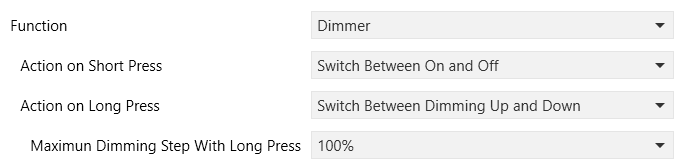
- Action on Short Press [Send Off / Send On / Switch Between On and Off / Absolute Dimming / Scene]: sets the value to be sent to the bus (via the corresponding object) when the user makes a short press on the button.
If the fourth option is selected, an additional parameter appears (Value [0...50...100] [%]) to enter the desired percentage value. With the last option, another parameter called Scene Number appears with possible values between [1...64].
- Action on Long Press [Dimming Down / Dimming Up / Switch Between Dimming Up and Down]: sets the action to send to the bus when the user performs a long press on the button.
- Maximum Dimming Step With Long Press [100% / 50% / 25% / 12,5% / 6,25% / 3,1% / 1,5%]: defines the dimming step to be sent (through "[Ix][] Light - Dimming Control") to the light dimmer with every long press.
Note
Since dimmers typically do not apply the new light level immediately (i.e., the step is performed progressively) and since capacitive touch switches send an order to interrupt the step dimming once the user releases the button, it is advisable to configure a step of 100%.
- This way, the user can perform any dimming step by simply leaving the button pressed and then releasing it, without needing to make successive button presses.
2.2.2.8. Shutter

The (alternating) move up/down orders for “Standard” type will be sent through the “[Ix][] Shutter - Move Control” one-bit object, while the (alternating) step up/down orders will be through the “[Ix][] Shutter - Stop/Step Control” one-bit object. In case of “Hold & Release”, the movement commands will be sent by the same object as standard but as there are no steps, the sending to stop the shutter will be done by the object "[Ix][] Shutter - Stop Control".
Additionally, a one-byte object (“[Ix][] Shutter - Percentage Status”) is provided to link it to the position status object of the shutter actuator (in fact, this object is only intended to receive values from the bus, not to send them).
- The parameters for this function are:
- Type [Standard / Hold & Release]: sets the desired control type.
2.2.2.9. Room State (Indoor)
When this function is assigned to the button, the object for the control “[Ix][] Room State - Control” is enabled. This object will also be a status indicator, as well as two other one-bit objects to indicate the status of the room individually ("[Ix][] Room State - Make Up Room (Status)" and "[Ix][] Room Status - Do Not Disturb (Status)").
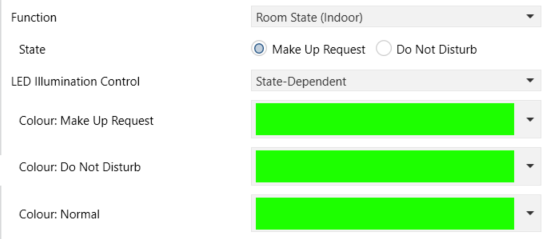
- State [Make Up Request / Do Not Disturb]: sets the state that is activated with this button. Commutes between “Normal” (“0”) and the selected state: “Make Up Room” (“1”) and “Do Not Disturb” (“2”).
If the illumination mode is set to “State-Dependent”, the following parameters will appear:
- Colour: Make Up Request [Colour Selector (Green / Red)]: the colour used to illuminate the LED when the control object’s value is “Make Up Room”.
- Colour: Do Not Disturb [Colour Selector (Green / Red )]: the colour used to illuminate the LED when the control object’s value is “Do Not Disturb”.
- Colour: Normal [Colour Selector (Green / Red)]: the colour used to illuminate the LED when the control object’s value is “Normal”.
Note
The default value of the colour parameters depends on the option configured in the State parameter.
2.2.2.10. Room State (Outdoor)
When this function is assigned to the button, the object for the control “[Ix][] Room State” is enabled. This object will also be a status indicator, as well as two other one-bit objects to indicate the status of the room individually ("[Ix][] Room State - Make Up Room (Status)" and "[Ix][] Room Status - Do Not Disturb (Status)").
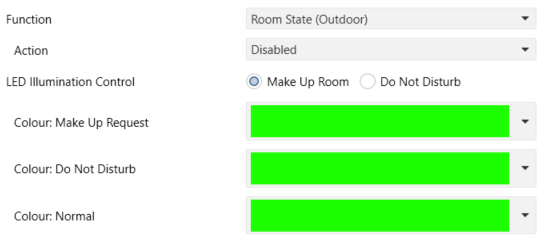
- Action [Disabled / Check Occupancy / Make Up in Progress]: determines the action to be executed when the button is clicked. Depending on the selected action, different objects and parameters are available.
- LED Illumination Control [Make-Up Room / Do Not Disturb]: defines the state of the room for which the LED illumination is activated.
- Colour: Make Up Request [Colour Selector (Green / Red)]: the colour used to illuminate the LED when the control object’s value is “Make Up Room”.
- Colour: Do Not Disturb [Colour Selector (Green / Red)]: the colour used to illuminate the LED when the control object’s value is “Do Not Disturb”.
- Colour: Normal [Colour Selector (Green / Red)]: the colour used to illuminate the LED when the control object’s value is “Normal”.
Note
The default value of the colour parameters depends on the option configured in the State parameter.
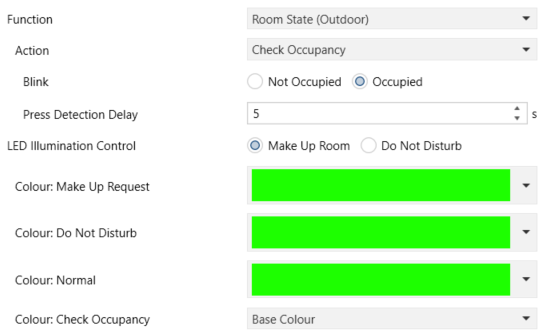
For “Check Occupancy”, the object "[Ix][] Presence - Occupancy State" is used to determine whether the room is occupied or not.
- Blink [Not Occupied / Occupied]: sets the occupancy status for which the LED blinks when a press is made.
- Press Detection Delay [0…5…15] [s]: defines the time the user must hold down the button to be able to consider a press.
An additional colour parameter will appear:
- Colour: Check Occupancy [Colour Selector (Base Colour)]: the colour with which the LED will flash intermittently when the “Check Occupancy” is activated.
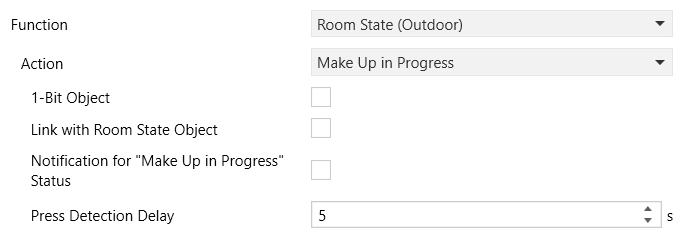
For “Make Up in Progress”:
- 1-Bit Object [disabled / enabled]: enables the binary object “[Ix][] Make-Up In Progress” which will permit the activation of “Make Up in Progress” status of the room.
- Link with Room State Object [disabled / enabled]: if the current status of the room is different from "Make Up in Progress" and a press is made, the object "[Ix][] Room State" will be sent to the bus updating it to that status. A further press will change the status to "Normal".
- Notification for “Make Up in Progress” Status [disabled / enabled]: offers the possibility to notify via flashing that the room is being cleaned. The flashing will stop with a new press, notifying the end of cleaning.
- Press Detection Delay [0…5…15] [s]: defines the time the user must hold down the button to be able to consider a press.
If Notification for “Make Up in Progress” is enabled, an additional colour parameter will be displayed:
- Colour: Make Up in Progress [Colour Selector (Base Colour)]: the colour with which the LED will flash intermittently when the “Make Up in Progress” status is activated.
2.2.2.11. Enumerated Indicator (Colour)
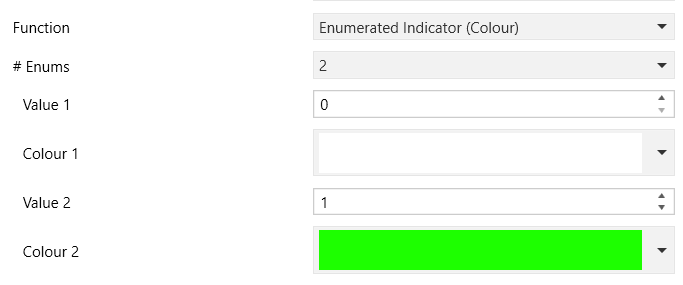
- # Enums [1…2…6]: sets the number of elements that make up the enumeration.
- Value 1 - 6 [0…255]: if the “[Ix][] Enumerated Indicator (Colour)” object receives a configured value, the LED will illuminate with the corresponding configured colour.
For each parameter there is another linked to the value received by the object (Colour 1 - 6 [Colour Selector (Neutral White)]), which determines the LED colour.
Note
If two elements are parameterised with the same value, the first element in the enumeration takes precedence.
2.2.3. Pair
Buttons configured to work as a joint control can be assigned the following functions:
- Switch: pressing one of the two buttons will make capacitive touch switches send a binary value to the bus, while pressing on the other will make it send the inverse binary value. It is possible to configure which one does what.
If the LED lighting is set to “State-Dependent” (see Annex I. LED Illumination Modes), the value of the communication object will determine the behaviour: the LED of the corresponding member of the pair will use the On-state brightness level and colour, while the other member’s LED will use the Off-state brightness level and colour. When the value is toggled, the LEDs swap their lighting states.
Conversely, if the lighting is set to “State-Dependent (both LEDs)”, both LEDs will use the On-state colour and brightness level while the switch is “On”, and the Off-state colour and brightness level while it is “Off”.
- Two Objects (Short Press/Long Press): permits sending specific binary values both after a short or a long press on any of the two buttons (i.e., they will work as a joint control; for independent buttons, please configure them as individual). Different objects will be used for the short and long presses.
Moreover, it is possible (in parameters) to make the “State-Dependent” and “State-Dependent (both LEDs)” LED illumination modes (see Annex I. LED Illumination Modes) depend on either one object or the other.
However, if LED Illumination Control (All Buttons) has been set to “State-Dependent (Where Available)” only the short press object will be considered.
- Dimmer: short-pressing one of the two buttons will make capacitive touch switches send a switch-on order to the bus, while doing so on the other button will make it send a switch-off order.
Long presses will make it send a step dimming order (the value of which is configurable) to make a dimmer increase or decrease the light level (and a stop order as soon as the user releases the push button). It is possible to configure which button does what.
Under a “State-Dependent” LED illumination (see Annex I. LED Illumination Modes), the corresponding button’s LED will change its brightness level and colour depending on whether the current value of the lighting status object (which should be updated by the actual dimmer) is greater than 0% or not.
On the other hand, under a “State-Dependent (both LEDs)” LED illumination, both LEDs will change their colour and brightness level simultaneously based on that same value.
- Shutter: this option permits making use of the two buttons to control a shutter actuator connected to the bus. Two alternative control methods are possible:
- “Standard”: a long press will make the device send to the KNX bus an order to start moving the shutter (upwards or downwards, depending on the button), while a short press will make it send a stop order (which will be interpreted as an order to step up or to step down –depending on the button– if the shutter was not in motion and such function is available).
- “Hold & Release”: as soon as the button is held, the device will send the KNX bus an order to start moving the shutter (upwards or downwards, depending on the button). Once the button is released, it will send an order to stop.
The “State-Dependent” and “State-Dependent (both LEDs)” LED illumination modes are not available for this function (only the “Regular” and “Dedicated Object” LED illumination are available). See Annex I. LED Illumination Modes for details.
- Room State (Outdoor): whether the room requires cleaning or is in "Do Not Disturb" status by illumination of the LEDs. In addition, the status of the room (“Occupied / Not Occupied”) can be queried with a long press and the status of the room can be changed to "Make Up in Progress".
Each button of the pair can be configured independently, but their function will influence each other depending on the parameterisation applied. The functions of each button can be as follows:
- “Disabled”: as long as it remains disabled, the pushbutton will have no functionality: pressing it will not execute any action, nor will any change in the lighting of the indicators be produced.
- “Check Occupancy”: by enabling a button with this functionality, the occupancy status of the room can be known by means of the flashing of the indicators.
Once the button has exceeded the time threshold configured for its detection, a beep will be emitted, and the indicators parameterised for the current occupancy status will flash for 5 seconds.
- “Make Up in Progress”: by enabling a button with this functionality, the start and end of room cleaning can be notified.
Once the button has exceeded the time threshold configured for its detection, a beep will be emitted and different sendings will be made to the bus according to the selected options:
- 1-Bit Object for activation/deactivation of the "Cleaning in progress" function.
- Link with Room State Object: the action of the button is linked to the room status object so that each press of the button sends a message to the bus, switching the status between “Make Up in Progress” / “Normal”.
- Notification for “Make Up in Progress” Status: by flashing of the indicators. A further press is required to notify the end of cleaning.
The options mentioned above are not exclusive, so that those that have been enabled can be executed simultaneously.
In this way, situations of overlapping LED illumination can occur. If “Make Up in Progress” and “Check Occupancy” notifications are active at the same time, the first one will stop and the LEDs set for the latter will light up. At the end of the “Check Occupancy”, the “Make Up in Progress” flashes again.
It can also result in poor parameterisation, such as configuring two buttons with the same function, because the pair only reports the status of a single room.
Example: 1: 2 Buttons “Check Occupancy”
- Left Button: Occupied: “Blink Left Indicator” Not Occupied: “Blink Left Indicator”
- Right Button: Occupied: “Blink Both Indicators” Not Occupied: “Blink Both Indicators”
With the occupancy status as "Not Occupied", the following is expected.
- Long press on the right button → Both indicators flash for 5 seconds.
- Long press on the right button → Only the right indicator flashes for 5 seconds.
- Switch to the “Occupied” state and perform a long press on the right button→ Both indicators flash for 5 seconds.
- Example 2: 2 buttons “Make Up in Progress”
- Left Button: 1-Bit Object: Link with Room State Object: Notification for “Make Up in Progress” status:
- Right Button: 1-Bit Object: ꭓ Link with Room State Object: ꭓ Notification for “Make Up in Progress” status: ꭓ
- Since the 1-bit object is common, even if the right button has not enabled it, it will be visible, because the left button has enabled it.
After pressing the left button:
- Sending of “Make Up in Progress” object = “1” (On)
- Sending of Room State object = “3” (“Make Up in Progress”)
- Notification → Blink the corresponding indicators
After pressing the right button:
- There is no object sending (“Make Up in Progress” object value becomes “0”, but Room State object remains “3”)
- Notification → Blink the corresponding indicators
- After pressing the left button:
- Sending of “Make Up in Progress” object = “1” (“On”)
- Sending of “Room State” object = “3” (“Make Up in Progress”)
- Notification → Blink the corresponding indicators
Once two buttons have been assigned to a particular pair, a specific tab (“X Pair”) becomes available under “Buttons” in the tab tree.
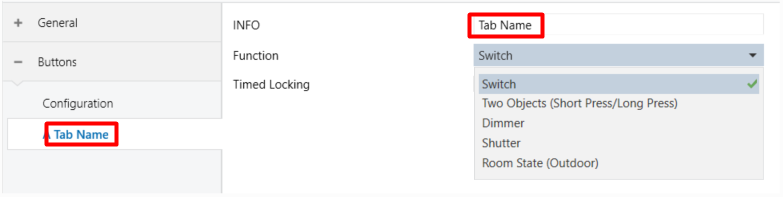
Textbox INFO allows changing the default name of the tab in the left menu, as shows the following figure, identifying each of the enabled pairs and their communication objects with the prefix "[PX][INFO]".
The main parameter that needs to be configured is:
- Function [Switch / Two objects (Short press/Long press) / Dimmer / Shutter / Room State (Outdoor)]: sets the desired function for the button pair.
In case the option "Configure every button (pair) separately" has been selected in the LED Illumination Control Parameter (All Buttons) in the "Configuration" tab (see section 2.2.1), the additional parameters will be displayed:
- LED Illumination Control [Regular / State-Dependent / State-Dependent (Both LEDs) / Dedicated Object]. These values are different for “Room State (Outdoor)” control, whose LED illumination control is particular.
If the “Regular” mode is configured, the following parameter will be displayed in ETS:
- Colour [Colour selector (Base Colour)]: sets the colour that the LEDs will adopt.
If “State-Dependent” or “State-Dependent (Both LEDs)” is selected:
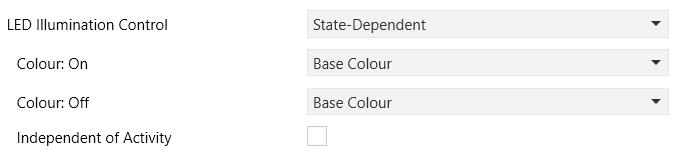
- Colour: On [Colour selector (Base Colour)]: sets the colour with which the LED of the member whose action matches the current value of the (group) object will light up.
- Colour: Off [Colour selector (Base Colour)]: defines the colour to be set on the LED of the member of the pair whose action does not match the current value of the (group) object.
Note
Illumination depends on the action configuration of each member of the pair, so the behaviour may be inverted in pairs where the default action option is not configured.
In case of selecting the latter, the object “[PX][] LED - Switch Control” will be included in the project topology and several new parameters will appear for configuring the LEDs’ illumination.
- Value [0 = Off; 1 = On / 0 = On; 1 = Off]: determines the polarity of the communication object.
- Colour: On [Colour selector (Base Colour)]: sets the colour with which the LED of the member whose action matches the current value of the binary object will illuminate.
- Colour: Off [Colour selector (Base Colour)]: defines the colour to be set on the LED of the member of the pair whose action does not match the current value of the binary object.
Note
For further information, please refer to section 2.2.1 and Annex I. LED Illumination Modes.
Regardless of the configured illumination mode, the following parameter will always be available:
- Independent of Activity [disabled / enabled]: sets the corresponding LEDs to illuminate as if it were always in the active state, ignoring the inactivity state. The rest of the controls that have not enabled this functionality will continue to illuminate according to the activity status.
Important
If the internal temperature sensor is enabled, particular care is recommended when using this functionality, as heat generated by the LED illumination may affect the temperature measurement.
However, there is another parameter that appears for all previously selected functions except “Shutter”, as its use in these cases is not useful.
- Timed Locking [disabled / enabled]: allows a pair of buttons to be locked for a configured time after being pressed. When marked, a specific parameter appears Lock Time [0...5...60] [s]. It starts counting as soon as the button is released.
After bus failure, the pair starts without timed locking. It will start again when it is pressed again. This locking is independent of the general button locking, it has no influence on the locking object.
Lastly, as noted in section 2.2.1, if the Independent Button Locking parameter is enabled, an additional parameter will be shown on each pair’s tab.
- Independent Locking [disabled / enabled]: enables the identically named object (“[PX][] Independent Locking”), through which this functionality can be switched on or off.
Depending on the function, some more parameters are shown, as described next. Please note that in the next pages the general notation “[PX][]” is used for the name of the communication objects, as “X” depends on the button pair (A, B, C, D or E).
2.2.3.1. Switch

- Action [Left=0; Right=1 / Left=1; Right=0]: assigns each of the two buttons the value to be sent through “[PX][] Switch - Control” (which has the Write flag enabled, so the state of the switch can be updated from external devices).
Note
This parameter will remain hidden unless having selected “Every button pair is configured separately” in Action of the Pair Buttons (All Pairs).
2.2.3.2. Two Objects (Short Press/Long press)
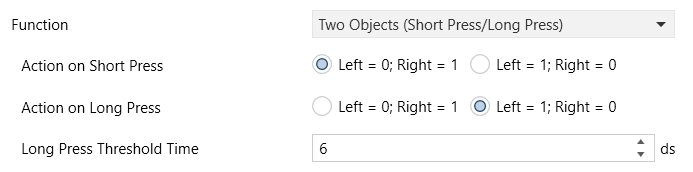
- Action on Short Press [Left = 0; Right = 1 / Left = 1; Right = 0]: sets the value that will be sent through “[PX][] Two objects - Short Press Control” after the user short-presses one of the two buttons.
- Action on Long Press [Left = 0; Right = 1 / Left = 1; Right = 0]: sets the value that will be sent through “[PX][] Two objects - Long Press Control” after the user long-presses one of the two buttons.
Note
Both parameters will remain hidden unless having selected “Every button pair is configured separately” in Action of the Pair Buttons (All Pairs).
- Long Press Threshold Time [5…6…50] [ds]: sets the minimum time the user should hold the button in order to consider it a long press.
2.2.3.3. Dimmer
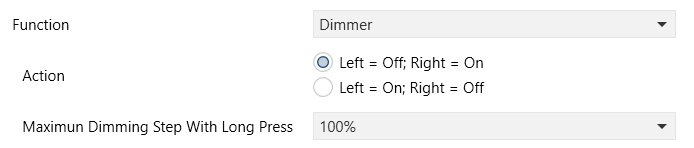
The switch orders will be sent through the “[PX][] Light - Switch Control” one-bit object, while the increase/decrease orders will be through the “[PX][] Light - 4-bits Dimming Control” four-bit object.
On the other hand, the “[PX][] Light - Percentage Status” one-byte object may be linked to the light level status object of the dimmer (in fact, this object is only intended to receive values from the bus, not to send them). The parameters for this function are:
- Action [Left = Off; Right = On / Left = On; Right = Off]: assigns each of the two buttons the order to be sent.
Note
This parameter will remain hidden unless having selected “Every button pair is configured separately” in Action of the Pair Buttons (All Pairs).
- Maximum Dimming Step With Long Press [100% / 50% / 25% / 12,5% / 6,25% / 3,1% / 1,5%]: defines the dimming step to be sent to the light dimmer with every increase / decrease order.
Note
Since dimmers typically do not apply the new light level immediately (i.e., the step regulation is performed progressively) and since capacitive touch switches send an order to interrupt the step dimming once the user releases the button, it is advisable to configure a step of 100%. This way, the user can perform any dimming step by simply leaving the button pressed and then releasing it without needing to make successive button presses.
2.2.3.4. Shutter
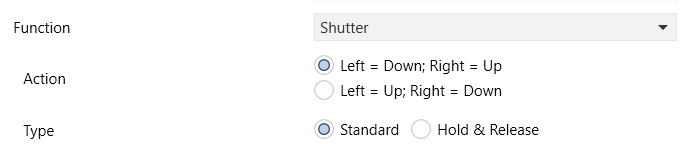
The move orders will be sent through “[PX][] Shutter - Move Control”, while the stop orders will be sent through “[PX][] Shutter - Stop/Step Control” (for “Standard” type) or “[PX][] Shutter - Stop Control” (for “Hold & Release” type). The parameters for this function are:
- Action [Left = Down; Right = Up / Left = Up; Right = Down]: assigns each of the two buttons the order to be sent.
Note
This parameter will remain hidden unless having selected “Every button pair is configured separately” in Action of the pair buttons (All Pairs).
- Type [Standard / Hold & Release]: sets the desired behaviour of the buttons.
2.2.3.5. Room State (Outdoor)
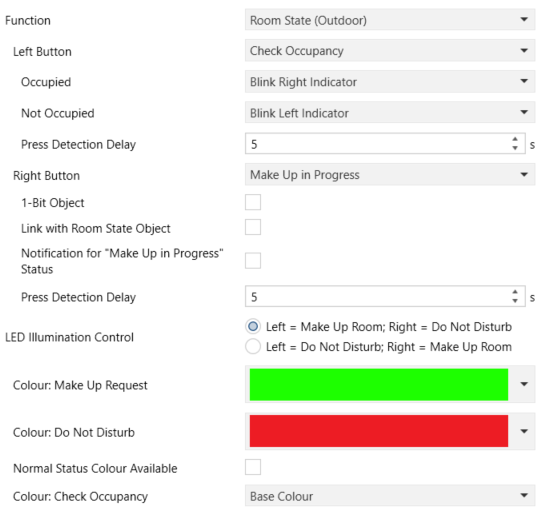
- Left Button [Disabled / Check Occupancy / Make Up in Progress].
If "Check Occupancy" is selected, it is possible to configure which indicators should blink according to the value acquired by the object "[PX][] Presence - Occupancy State":
- Occupied [Blink Left Indicator / Blink Right Indicator / Blink Both Indicators / Nothing]: sets the action on the indicators after consultation when the room state is “Occupied”.
- Not Occupied [Blink Left Indicator / Blink Right Indicator / Blink Both Indicators / Nothing]: sets the action on the indicators after consultation when the room status is “Not Occupied”.
- Press Detection Delay [1…5…15] [s]: defines the time the user must hold down the button to be able to consider a press.
And an additional colour parameter will appear:
- Colour: Check Occupancy [Colour Selector (Base Colour)]: the colour with which the LED (or LEDs) will flash intermittently when the “Check Occupancy” is activated.
If "Make Up in Progress" is configured, the following options (not mutually exclusive) are offered for activation and/or notification of the "Make Up in Progress" status:
- 1-Bit Object [disabled / enabled]: enables the binary object “[PX][] Make Up in Progress” which will permit the activation of “Make Up in Progress” status of the room.
- Link with Room State Object [disabled / enabled]: if the current status of the room is different from "Make Up in Progress" and a press is made, the object "[PX][] Room State" will be sent to the bus updating it to that status. A further press will change the status to "Normal".
- Notification for “Make Up in Progress” Status [disabled / enabled]: offers the possibility to notify via flashing that the room is being cleaned. The flashing will stop with a new press, notifying the end of cleaning.
- Type [Blink Left Indicator / Blink Right Indicator / Blink Both Indicators]: sets the action on the indicators when the room status is "Make Up in Progress".
- Press Detection Delay [1…5…15] [s]: determines how long the press must be held for it to be considered.
If the Notification for “Make Up in Progress” Status parameter is enabled, an additional colour parameter will be shown:
- Colour: Make Up in Progress [Colour Selector (Base Colour)]: the colour with which the LED (or LEDs) will flash intermittently when the “Make Up in Progress” state is active.
- Right Button [Disabled / Check Occupancy / Make-Up In Progress]: When "Check Occupancy" or "Make Up in Progress" is enabled, the same parameters are available as in the previous button.
- LED illumination Control [Left = Make Up Room; Right = Do Not Disturb / Left = Do Not Disturb; Right = Make Up Room]: sets the LED illumination when the room status (depending on the value of the object "[PX][] Room State") is "Make Up Room" and which for the "Do Not Disturb" status.
- Colour: Make Up Request [Colour Selector (Green)]: colour used to illuminate the paired unit’s LED when in the “Make Up Room” state.
- Colour: Do Not Disturb [Colour Selector (Red)]: colour used to illuminate the paired unit’s LED when in the “Do Not Disturb” state.
- Normal Status Colour Available [disabled / enabled]: enables LEDs to illuminate in a specified colour when the control object value is “Normal”. If not enabled, the LEDs set their brightness level to “Off” while retaining the “Make Up Request” and “Do Not Disturb” colours.
- Colour: Normal [Colour Selector (Base Colour)]: colour used to illuminate the LEDs when the control object value is “Normal”.