Flat / Tecla RGB: Annex I. LED Illumination Modes
Each button is equipped with RGBW LED backlighting which, by default (in most functions), momentarily changes its brightness level when the button is pressed. This behaviour is referred to as the “Regular Illumination”.
However, in most cases it is possible to assign different behaviours to the LEDs. Which options are available will depend on the function parameterised for the button, but will always include some of the following:
- Regular Illumination: the LED sets a single, configurable colour with a default brightness state (“On” or “Off”), and briefly switches its brightness to the opposite state when the button is pressed.
- State-Dependent Illumination: the LED will remain either in the “On” brightness/colour state or the “Off” state, depending on the value of the object associated with the function assigned to the button. The exact mapping between object values and LED states may vary slightly from one control type to another (detailed per function). For paired controls, the object value sets the “On” brightness and colour on the LED of the pair member whose action corresponds to that value, while the other member’s LED is shown with the “Off” brightness and colour.
- State-Dependent Illumination (both LEDs): applicable only to buttons configured as a pair. Both LEDs in the pair will remain either in the “On” brightness/colour state or not, depending on the value of the object linked to that pair’s function and on the specific function type. The only difference compared to the previous case is that, under “both LEDs”, the two LEDs will always turn off or on simultaneously, as if it were a unique indicator consisting of two LEDs.
- Dedicated Object: the LED will set the “On” brightness and colour, or not, depending on the value (“0” or “1”, configurable) of an independent binary object. For paired controls, value “0” will light one LED with the “On” brightness and colour while the other remains in the “Off” brightness and colour; value “1” will swap their states.
Table 3 illustrates which of the above are configurable for each function.
| Disabled | Regular | State-dep. | State-dep. (both LEDs) | Dedicated object | ||
|---|---|---|---|---|---|---|
| PAIR | Switch | ✓ | ✓ | ✓ | ✓ | |
| Two Objects | ✓ | ✓ | ✓ | ✓ | ||
| Dimmer | ✓ | ✓ | ✓ | ✓ | ||
| Shutter | ✓ | ✓ | ||||
| INDIVIDUAL | Switch | ✓ | ✓ | ✓ | ||
| Hold & Release | ✓ | ✓ | ||||
| Two Objects | ✓ | ✓ | ✓ | |||
| Scene | ✓ | ✓ | ||||
| Constants | ✓ | ✓ | ✓ | |||
| Dimmer | ✓ | ✓ | ✓ | |||
| Shutter | ✓ | ✓ | ||||
| LED Indicator | ✓ | |||||
| Room State (Indoor) | ✓ | ✓ | ✓ |
Note
Regarding the LEDs, it is interesting to distinguish the following cases:
- Disabled button: the LED will remain off, and the button will have no function.
- Button configured as “Individual” with “LED Indicator” function: the button will still have no function. The LED can adjust its illumination (brightness and colour) via a binary object (behaviour similar to illumination via a dedicated object).
- Button configured as “Individual” with “Enumerated Indicator (Colour)” function: the LED can change its colour based on the value of the 1-byte object.
- Button configured as “Individual”/”Pair” with “Room State (Outdoor)” function: this is a specific case; the illumination control is carried out by the functionality of the control itself.
- Button configured as any other control type: the behaviour of the LED will be configurable according to the following table (being also possible to leave it turned off).
Although the behaviour of the LEDs can be configured independently for each control, it is also possible to define a general behaviour for all of them thus not being then necessary to configure the same option multiple times.
In case of opting for a general configuration, the options are:
- Regular.
- State-Dependent (Where Available). Functions where “state-dependent” is not available will use the regular illumination.
- State-Dependent (Where Available) (Both LEDs). Functions where “state-dependent” is not available will use the regular illumination.
- Dedicated Object.
For details on the parameterisation of the LED illumination modes please refer to the pages that cover the specific function being assigned to the button (see section 2.2). In case of desiring a similar behaviour for all of the LEDs, please find the parameter LED Illumination Control (All buttons) in the options of the “General” configuration.
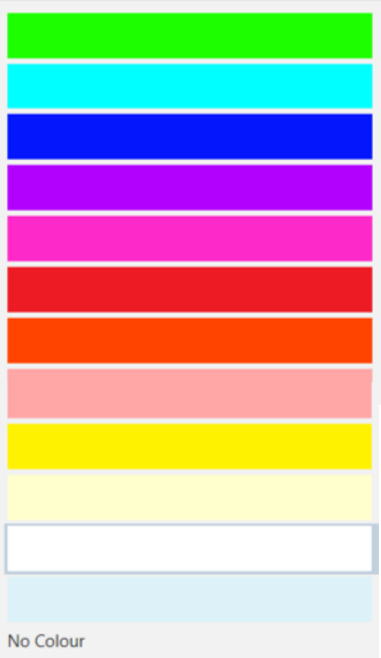
For LED colour configuration, a palette is provided with 9 colours plus 3 white tones (warm, neutral and cool), and a “No colour” option that turns the LED off regardless of the brightness level.